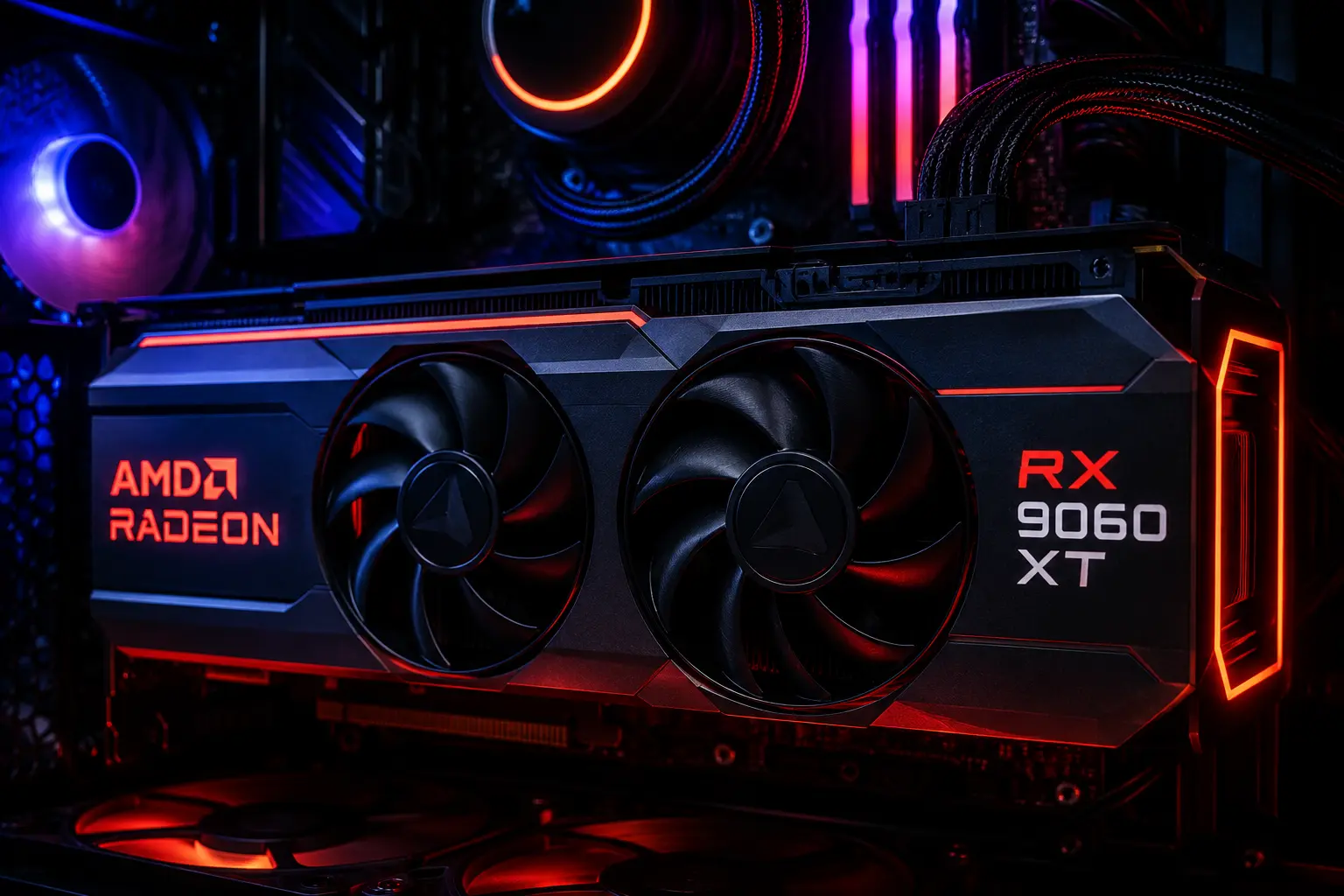

If you just picked up AMD’s freshest mid-range card and you’re still running default driver settings, you’re leaving serious FPS on the table. The RX 9060 XT launched in May 2026 with RDNA 4 architecture and 16 GB of GDDR6 memory, plenty of headroom for 1080p and 1440p gaming, but only if the card is configured correctly. This guide walks through every layer of optimization, from AMD Software: Adrenalin Edition settings to in-game tweaks, so you can squeeze every last frame out of your hardware.
Why the RX 9060 XT Needs Manual Tuning
Out of the box, AMD ships the RX 9060 XT with conservative power limits and balanced performance profiles designed for thermal safety across hundreds of PC configurations. That’s smart for AMD, but it’s not smart for your framerate. Applying the best settings AMD RX 9060 XT FPS 2026 users have validated can add 15–30% more average FPS depending on the game and resolution.
The card has a base clock of 2,124 MHz and a boost clock target of 3,089 MHz, with a 182W TDP. With the right settings, it sustains that boost clock far more consistently.
Step 1 — Driver and Software Setup
Always start with a clean driver install. Use DDU (Display Driver Uninstaller) in Safe Mode before installing the latest Adrenalin package.
- Download DDU from Wagnardsoft and run it in Safe Mode — select “Clean and Restart”
- Install AMD Software: Adrenalin Edition 26.5.x (the May 2026 release added FSR 4.1 support and improved shader pre-compilation)
- Set Shader Cache to Unlimited in AMD Software → Gaming → Graphics
- Disable AMD Fluid Motion Frames until you’ve established your baseline FPS — it adds latency overhead
Pro tip: After driver install, launch each game once and exit cleanly before benchmarking. Shader compilation on first launch artificially tanks framerates and skews your numbers.
Step 2 — AMD Software: Adrenalin Edition Settings
Open AMD Software and navigate to Gaming → Graphics. These are the recommended values:
Global Graphics Settings
| Setting | Recommended Value |
|---|---|
| Radeon Super Resolution | Quality (for 1080p → 1440p upscaling) |
| Radeon Anti-Lag 2 | Enabled |
| Radeon Boost | Enabled (Dynamic Res) |
| Image Sharpening | 80% |
| Texture Filtering Quality | Performance |
| Surface Format Optimization | Enabled |
| Tessellation Mode | Override → 8x |
| Wait for Vertical Refresh | Always Off |
| Anti-Aliasing Mode | Use Application Settings |
| Anisotropic Filtering | 16x (negligible performance cost) |
Power and Tuning
Navigate to Performance → Tuning:
- Set Tuning Control to Manual
- Power Limit: +15% (pushes TDP from 182W to ~209W — stay under 220W for safe 24/7 operation)
- Fan Speed: Set a custom curve — keep GPU temp under 85°C at load
- VRAM Frequency: Leave at auto unless you have premium cooling
- Enable Rage Mode only on cards with aftermarket coolers — it adds another 5–8% boost clock headroom
Step 3 — Windows System Optimization
The driver alone isn’t enough. Windows introduces several bottlenecks that kill the best settings AMD RX 9060 XT FPS 2026 builds are chasing.
Power Plan
Control Panel → Power Options → High Performance
Or use the Ultimate Performance plan (enable via PowerShell):
powershell
powercfg -duplicatescheme e9a42b02-d5df-448d-aa00-03f14749eb61
Hardware-Accelerated GPU Scheduling (HAGS)
- Windows Settings → System → Display → Graphics → Default Graphics Settings
- Enable Hardware-Accelerated GPU Scheduling — on RDNA 4, this reduces CPU overhead and improves 1% lows by 6–12%
Game Mode and Xbox Game Bar
- Enable Game Mode (Settings → Gaming → Game Mode → On)
- Disable Xbox Game Bar — it introduces background GPU usage spikes
Process Priority
Use Task Manager to verify your game process runs at High priority, or automate it with Process Lasso if you want a persistent fix.
Step 4 — In-Game Settings That Actually Matter
Not all settings are created equal. These have the highest FPS-per-quality-tradeoff ratio on the RX 9060 XT:
Shadows and Ambient Occlusion
Shadow quality and AO are the two most expensive settings in most engines. Drop shadow distance to Medium and AO to SSAO (avoid GTAO or ray-traced AO entirely unless you’re above 90 fps baseline). Expect a 12–18% FPS gain from shadows alone.
Anti-Aliasing
The RX 9060 XT supports FSR 4.1 Native AA — use this instead of TAA or MSAA wherever available. It’s sharper than TAA and costs almost nothing. In games without FSR 4.1, use SMAA over MSAA.
Ray Tracing
The RDNA 4 ray-tracing implementation is substantially better than RDNA 3, but it still costs frames:
- Ray-traced reflections: -20 to -35 FPS at 1440p
- Ray-traced global illumination: -30 to -50 FPS
- Ray-traced shadows: -10 to -15 FPS
Unless you’re above 120 FPS baseline, disable RT and use screen-space alternatives. The visual difference in fast-paced games is marginal.
Resolution Scaling
The RX 9060 XT’s 16 GB VRAM buffer is its biggest advantage over competing cards. Use it to stay at native resolution with FSR 4.1 Quality Mode for 1440p output at 1080p render resolution — you get approximately 85% of native image quality with 40–50% more FPS.
Hardware Tier: FPS Expectations by System
Getting the best settings AMD RX 9060 XT FPS 2026 outcomes requires your CPU and RAM to keep pace. Here’s what to expect at 1440p Ultra settings (with FSR Quality):
Budget Tier — ~90–110 FPS average
- CPU: Ryzen 5 7600 / Intel Core i5-14400F
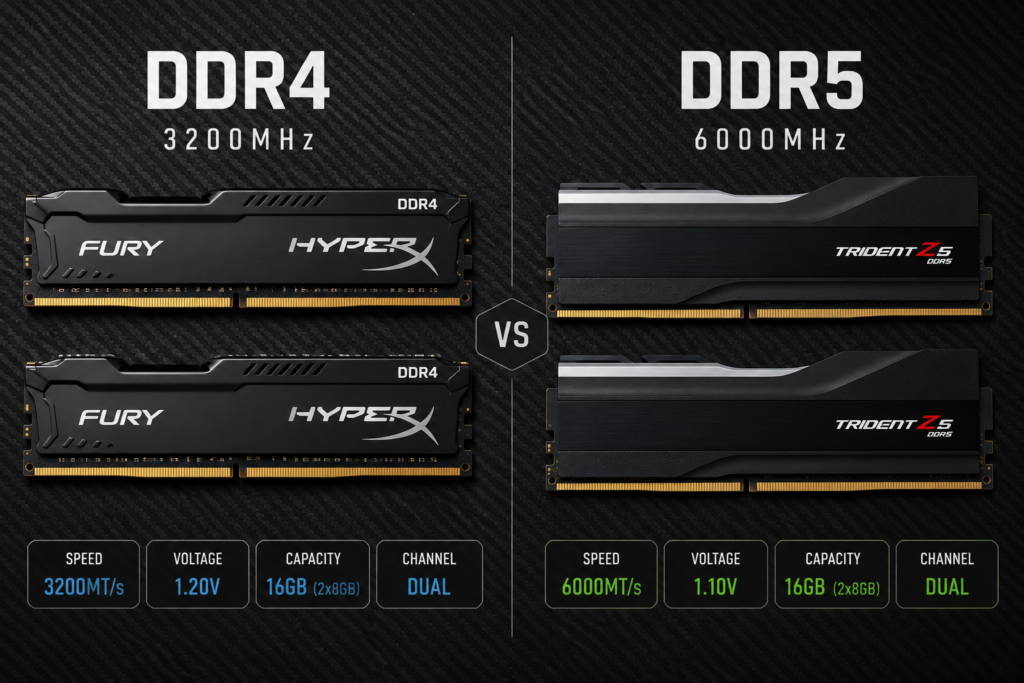
- RAM: 16 GB DDR5-5200 (dual channel)
- Bottleneck: CPU at 100+ FPS in open-world titles
- Games: Cyberpunk 2077 ~95 FPS, Call of Duty ~130 FPS, Baldur’s Gate 3 ~105 FPS
Mid-Range Tier — ~115–140 FPS average
- CPU: Ryzen 7 7700X / Intel Core i7-14700K
- RAM: 32 GB DDR5-6000 (dual channel, with EXPO/XMP)
- Bottleneck: Minimal — GPU-limited in most scenarios
- Games: Cyberpunk 2077 ~118 FPS, Call of Duty ~155 FPS, Alan Wake 2 ~125 FPS
High-End Tier — ~140–170 FPS average
- CPU: Ryzen 9 9900X / Intel Core i9-14900K
- RAM: 32 GB DDR5-6400
- Bottleneck: None — pure GPU ceiling
- Games: Cyberpunk 2077 ~145 FPS, CS2 ~310 FPS, Starfield ~138 FPS
Note: 1080p performance scales even higher. The RX 9060 XT regularly hits 200+ FPS in esports titles at 1080p with the settings above — well-suited for 240Hz monitors at competitive settings.
Step 5 — Monitor and Display Settings
Your GPU settings don’t exist in isolation. Match these display settings to unlock full performance:
- Refresh Rate: Set your monitor to its maximum in Windows Display Settings — not just in-game
- AMD FreeSync Premium: Enable in both AMD Software and your monitor’s OSD. With FreeSync, you eliminate tearing without the input latency cost of V-Sync
- Color Depth: 8-bit + FRC is fine for gaming; 10-bit adds no FPS benefit and can cause issues with some games
- HDR: Disable at the OS level unless your monitor is DisplayHDR 600+ certified — Windows HDR introduces a tone-mapping pass that costs 3–7 FPS
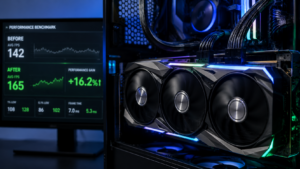
Benchmarking Your Configuration
Before and after applying these changes, run a consistent benchmark:
- Use MSI Afterburner + RivaTuner to overlay real-time GPU clock speeds, temps, and VRAM usage
- Run the built-in benchmark in your target game three times — take the median
- Check GPU clock — the RX 9060 XT should sustain 2,900–3,089 MHz under load with the power limit increase applied
- If VRAM usage exceeds 12 GB at your target settings, reduce texture quality one step
Target metrics at 1440p with FSR Quality: average GPU utilization above 97%, VRAM usage between 8–14 GB, and temps under 85°C.
Check your exact FPS expectations before you buy or build.
Use the interactive benchmark tool at fpscalculator.net to see real-world FPS estimates for the RX 9060 XT across dozens of games at every resolution — filtered by your specific CPU and RAM configuration.
Final Checklist
Run through this before your next gaming session:
- [ ] Clean driver install with DDU
- [ ] AMD Software power limit set to +15%
- [ ] HAGS enabled in Windows
- [ ] Ultimate Performance power plan active
- [ ] Game Mode on, Xbox Game Bar off
- [ ] FSR 4.1 enabled in-game (Quality or Balanced)
- [ ] Shadows set to Medium, AO to SSAO
- [ ] RT disabled unless above 120 FPS baseline
- [ ] FreeSync enabled in monitor OSD and AMD Software
- [ ] MSI Afterburner monitoring active during first session
The best settings AMD RX 9060 XT FPS 2026 configurations share one thing: they treat the GPU as a tunable system, not a plug-and-play appliance. Ten minutes of setup work here translates to smoother gameplay for every hour you put into the games you care about.