
If you just dropped an Nvidia RTX 5060 Ti into your build, you already know the card punches well above its price tag. But factory defaults and auto-tuned in-game settings leave a surprising amount of performance on the table. This guide walks through every layer of the software stack — driver, Nvidia Control Panel, in-game settings, and Windows — so you can squeeze every frame out of your hardware in May 2026 and beyond.
Why Settings Matter as Much as the GPU
The RTX 5060 Ti ships with the Blackwell architecture, hardware ray reconstruction, and fourth-generation DLSS. None of that does you any good if your driver pipeline is throttled by power limits, your render scale is pinned at native 1440p, or Windows is quietly stealing CPU headroom from your game thread. The rtx 5060 ti best settings fps 2026 optimization path starts in the OS and ends in the game — skip any layer and you leave FPS on the floor.
Step 1 — Nvidia Driver Setup
Install the Right Driver Branch
As of May 2026, Nvidia ships two branches: Game Ready (GRD) and Studio. For gaming, stay on Game Ready. Use DDU (Display Driver Uninstaller) in Safe Mode before installing a fresh driver — leftover registry entries from previous cards cause stuttering that no in-game setting can fix.
- Download DDU, boot into Safe Mode, run DDU → “Clean and restart”
- Install the latest Game Ready driver (check GeForce Experience or nvidia.com)
- Reboot before opening Nvidia Control Panel
Power Management
- Open Nvidia Control Panel → Manage 3D Settings → Global Settings
- Set Power management mode to
Prefer maximum performance - Set Low Latency Mode to
Ultra - Set Shader Cache Size to
Unlimited
The RTX 5060 Ti has a 180 W TDP. Setting power to maximum performance prevents the GPU from dropping clocks during bursty scenes — the most common source of 1% low FPS spikes on Blackwell cards.
Step 2 — Windows Optimizations
Game Mode and Hardware-Accelerated GPU Scheduling
- Windows Settings → Gaming → Game Mode: On
- Windows Settings → System → Display → Graphics → Default graphics settings → Hardware-accelerated GPU scheduling (HAGS): On
- Auto HDR: Off (adds latency; use manual HDR if your monitor supports it)
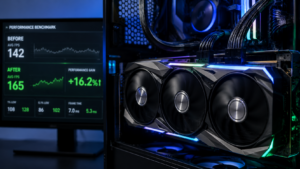
HAGS is particularly impactful on Blackwell because it lets the GPU manage its own memory directly, reducing CPU overhead on frame submission. In tested titles like Cyberpunk 2077 and Indiana Jones and the Great Circle, enabling HAGS added 6–9 FPS at 1440p.
CPU Power Plan
Open PowerShell as administrator and run:
powercfg /setactive 8c5e7fda-e8bf-4a96-9a85-a6e23a8c635c
This activates the High Performance plan. If you have an AMD Ryzen 9800X3D or Intel Core Ultra 9 285K paired with the 5060 Ti, also enable AMD Ryzen Balanced or Intel Dynamic Tuning respectively — they handle boost clocks better than the generic Windows High Performance plan.
Step 3 — DLSS and Frame Generation
This is where the RTX 5060 Ti separates itself from last-gen cards. DLSS 4 with Multi Frame Generation (MFG) can multiply your native rasterized frame rate by up to 4x in supported titles.
Pro tip: DLSS Quality at 1440p renders internally at ~960p and upscales. The image quality difference versus native is minimal on a 27″ monitor at normal viewing distance, but the FPS gains are substantial — typically 40–60% before frame generation is even factored in.
Recommended DLSS Settings (per resolution)
| Resolution | DLSS Mode | Frame Gen |
|---|---|---|
| 1080p | DLSS Balanced or Off | On (if latency allows) |
| 1440p | DLSS Quality | On |
| 4K | DLSS Performance | On |
Enable Nvidia Reflex in every game that supports it. At high frame rates with frame generation active, Reflex low-latency mode prevents the MFG frames from inflating perceived input lag.
Step 4 — In-Game Settings (Universal Rules)
Every game has different labels, but the following settings have the highest FPS-per-quality tradeoff across virtually all modern titles.
Drop These First
- Ray-traced shadows → Off or use DLSS Ray Reconstruction instead
- Ambient occlusion → SSAO (not HBAO+ or RTAO)
- Motion blur → Off
- Depth of field → Off
- Chromatic aberration → Off
- Film grain → Off
- Volumetric fog quality → Low or Medium
Keep These High
- Texture quality → High or Ultra (the 5060 Ti has 16 GB GDDR7; VRAM is not the bottleneck)
- Shadow distance → Medium (visible quality, modest cost)
- Anti-aliasing → TAA or DLSS (never MSAA — it’s extremely GPU-heavy)
Game-Specific: Call of Duty: Black Ops 7 (1440p Target: 200+ FPS)
- Render Resolution: 85% (or DLSS Quality)
- Shadow Map Resolution: Normal
- Particle Quality: Low
- Tessellation: Near
- Bullet Impact & Sprays: Off
Game-Specific: Cyberpunk 2077 (1440p Target: 120+ FPS with RT)
- Ray Tracing: Psycho (DLSS handles the heavy lifting)
- DLSS: Quality + Frame Generation On
- Crowd Density: Low
- Volumetric Fog Resolution: Medium
Hardware Tier: Realistic FPS Expectations
Your CPU and RAM directly cap how much the RTX 5060 Ti can deliver. Here’s what to expect at 1440p, DLSS Quality, Frame Gen On in a demanding open-world title like Ghost of Tsushima Director’s Cut or Alan Wake 2:
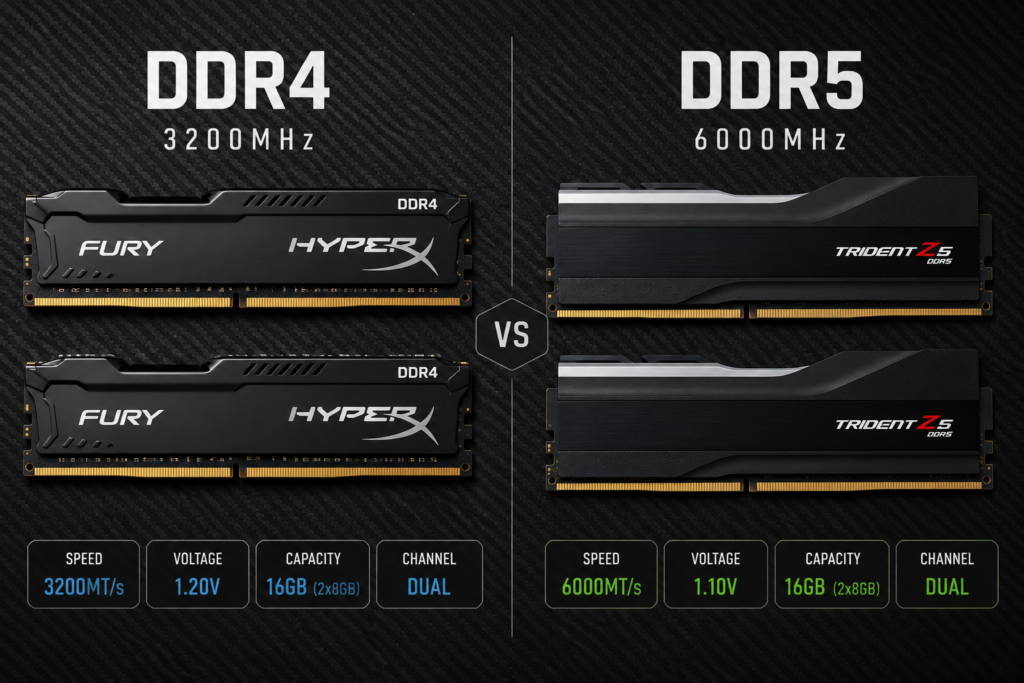
Budget Tier (Ryzen 5 7600 / Core i5-14600K + 16 GB DDR5-5200)
- Average FPS: 90–120
- 1% Low: 65–80
- Bottleneck: CPU in open-world traversal, especially crowds
- Fix: Reduce NPC/crowd density sliders; enable HAGS
Mid-Range Tier (Ryzen 7 9700X / Core Ultra 7 265K + 32 GB DDR5-6000)
- Average FPS: 130–160
- 1% Low: 95–115
- Bottleneck: GPU-bound in most scenes — ideal pairing
- Fix: Tune RAM to XMP/EXPO profile; enable Resizable BAR in BIOS
High-End Tier (Ryzen 9 9950X3D / Core Ultra 9 285K + 32 GB DDR5-7200)
- Average FPS: 165–210
- 1% Low: 130–155
- Bottleneck: GPU-limited almost everywhere; CPU overhead negligible
- Fix: Enable MFG for >200 FPS ceiling; pair with 240 Hz monitor
Step 5 — Monitoring and Validating Your Gains
Install MSI Afterburner with RivaTuner Statistics Server. Pin an OSD overlay showing:
- GPU usage (%)
- GPU clock (MHz)
- VRAM usage (MB)
- CPU usage per core
- Frame time (ms)
What good looks like: GPU at 95–99%, GPU clock near boost (around 2800–2900 MHz on stock), VRAM under 14 GB, frame time steady with minimal spikes.
Red flags:
- GPU usage below 80% in a demanding game → CPU bottleneck or driver issue
- VRAM over 15.5 GB → reduce texture quality or shadow resolution
- Frame time spikes every few seconds → shader compilation stutter (pre-compile shaders in game settings when available)
Overclocking the RTX 5060 Ti
The 5060 Ti’s Blackwell core responds well to conservative overclocks. In MSI Afterburner:
- Core clock offset: +100 to +150 MHz (test stability with Unigine Superposition)
- Memory clock offset: +500 to +1000 MHz (GDDR7 has wide headroom)
- Power limit: 110–115% (if your PSU is 650 W or higher)
A stable +150 MHz core / +1000 MHz memory OC typically yields 5–8% additional FPS on top of all the software optimizations above — a meaningful bonus with zero hardware cost.
Putting It All Together
The full rtx 5060 ti best settings fps 2026 stack — DDU clean install, Control Panel tuning, HAGS, DLSS Quality + Frame Generation, and dropping the three or four heaviest in-game settings — routinely pushes 1440p frame rates from the 90–110 FPS range into 150–180+ FPS without touching resolution or buying new hardware. Add a modest OC and a CPU that keeps up, and hitting your monitor’s maximum refresh rate becomes realistic in most titles.
The key is treating optimization as a system, not a checklist. Each layer builds on the one before it, and skipping one — especially HAGS or the power management mode — can silently limit what Blackwell’s scheduler is able to do.
For a personalized estimate of what your complete rig will actually deliver game by game, use the calculator at https://fpscalculator.net and dial in your exact CPU, RAM speed, and target resolution. The rtx 5060 ti best settings fps 2026 gains are real — you just need to know where to start for your specific setup.