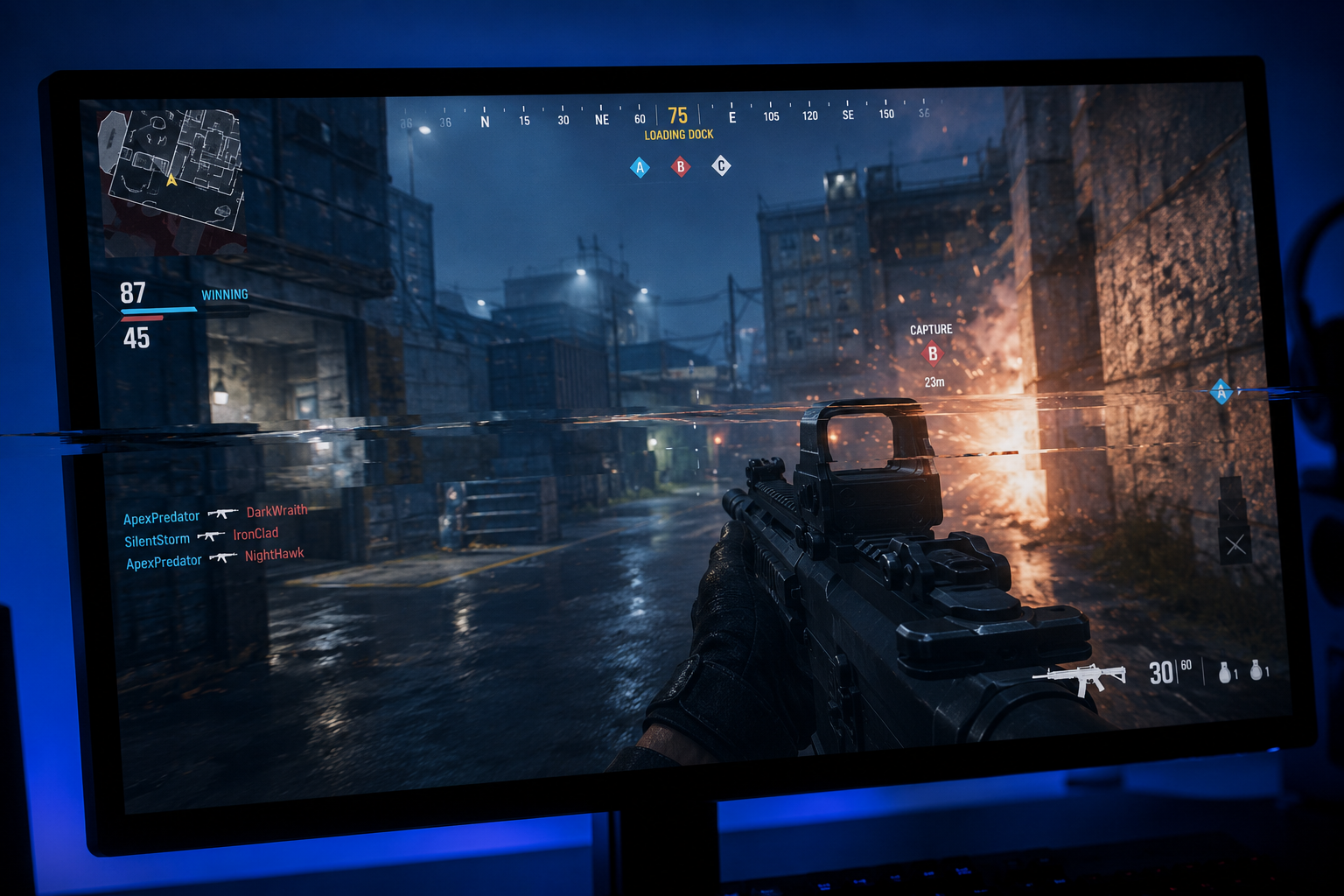

Screen tearing ruins immersion faster than almost any other visual glitch. One moment you’re lining up the perfect headshot, the next you’re staring at a horizontal split across your monitor that makes it look like two different frames got sliced together. It’s distracting, it’s unnecessary, and in 2026 there’s no reason to put up with it.
This guide explains exactly how to fix screen tearing while gaming using V-Sync, G-Sync, and FreeSync — with specific settings, hardware recommendations, and the FPS tradeoffs you need to know.
What Actually Causes Screen Tearing
Your GPU renders frames as fast as it can. Your monitor refreshes at a fixed rate — 60Hz, 144Hz, 240Hz, whatever you have. When those two clocks fall out of sync, the monitor starts drawing a new frame before the previous one finished. The result: a horizontal tear line where the old and new frame collide.
The fix is frame synchronization. There are three primary approaches, each with real tradeoffs.
V-Sync: The Old Standard
V-Sync (Vertical Synchronization) caps your frame rate to match your monitor’s refresh rate exactly. Running a 144Hz display? V-Sync locks you to 144 FPS. This eliminates tearing completely because the GPU only sends a new frame when the monitor is ready.
The problem: latency. V-Sync introduces input lag because the GPU has to wait for the monitor’s refresh cycle before delivering the next frame. In competitive shooters like Valorant or CS2, that lag is measurable — often 10–50ms depending on how far below your refresh rate your FPS drops. When your frame rate dips below your refresh rate, V-Sync cuts it in half (e.g., 60 FPS instead of 90 FPS on a 144Hz monitor), causing stutters.
When to Use V-Sync
- Single-player games where tearing is visually jarring (RPGs, cinematic experiences)
- You consistently hit or exceed your monitor’s refresh rate
- You’re using a 60Hz display with a GPU that easily pushes 60+ FPS
V-Sync Settings to Try
Most games offer standard V-Sync and “Fast Sync” (NVIDIA) or “Enhanced Sync” (AMD). Fast Sync and Enhanced Sync use a triple-buffer approach that dramatically reduces input lag while still eliminating tearing — set these instead of standard V-Sync whenever available in the NVIDIA Control Panel or AMD Software.
G-Sync: NVIDIA’s Adaptive Solution
G-Sync is NVIDIA’s variable refresh rate (VRR) technology. Instead of locking the frame rate to the monitor, it makes the monitor adjust its refresh rate to match whatever the GPU is outputting — in real time, continuously.
Your GPU renders a frame in 7ms? The monitor refreshes in 7ms. Next frame takes 11ms? Monitor waits 11ms. No tearing, no stutter, and critically, almost no added input lag.
G-Sync Tiers (Yes, It Matters)
- G-Sync Compatible — VESA AdaptiveSync monitors certified by NVIDIA. Cheaper, works well, but tested to a lower standard.
- G-Sync Module — NVIDIA’s proprietary hardware module inside the monitor. More expensive, often includes HDR, Low Framerate Compensation (LFC), and tighter variable refresh rate ranges.
- G-Sync Ultimate — Top tier: 1000+ nit HDR, ultra-low latency, typically found in high-end monitors like the ASUS ROG Swift PG32UQX or Alienware AW3423DWF.
G-Sync Sweet Spot Range
Variable Refresh Rate (VRR) technology operates within a specific refresh-rate window, often ranging from 1Hz to 240Hz on modern gaming monitors. The smooth, tear-free experience is maintained only while frame rates remain inside that supported range. Once FPS drops below the monitor’s minimum VRR threshold—typically around 48Hz on displays without Low Framerate Compensation (LFC)—stuttering and screen tearing can start to reappear. Monitors equipped with LFC help prevent this by compensating for low frame rates and keeping synchronization active. For consistently smooth gameplay, it’s best to keep your average FPS above 48 whenever possible.
Recommended setting: In NVIDIA Control Panel, go to Manage 3D Settings → enable G-Sync for your display. Set a frame cap 3–5 FPS below your monitor’s max refresh rate using NVIDIA’s in-driver limiter or RTSS (Rivatuner Statistics Server). This prevents the GPU from spiking past the G-Sync range, which would cause tearing again.
FreeSync: AMD’s Answer
AMD FreeSync (and the newer FreeSync Premium / FreeSync Premium Pro) is VESA’s open standard for adaptive sync. No licensing fees means FreeSync monitors are significantly cheaper — and since NVIDIA certified G-Sync Compatible monitors also use AdaptiveSync, FreeSync and G-Sync Compatible displays are often the same hardware.
Try this version, which avoids starting consecutive sentences with the same phrase:
AMD offers multiple FreeSync tiers to accommodate different gaming and display requirements. The Premium certification requires a minimum 120Hz refresh rate and Low Framerate Compensation (LFC) support, helping maintain smooth gameplay when FPS drops below the monitor’s refresh range. For users who want enhanced image quality, the Premium Pro tier adds HDR support with optimized tone mapping and lower-latency HDR processing, delivering a more responsive and visually accurate HDR experience.
FreeSync on NVIDIA GPUs
Yes, this works. Enable G-Sync Compatible mode in the NVIDIA Control Panel even on a FreeSync monitor. Most modern FreeSync monitors pass NVIDIA’s certification. The experience is nearly identical to a native G-Sync Compatible display.
Hardware Tier Breakdown: What FPS to Expect
One of the most common mistakes gamers make when trying to fix screen tearing while gaming is buying a 240Hz monitor without a GPU that can sustain 200+ FPS. Here’s a realistic tier breakdown for 1080p competitive gaming in 2026:
Budget Tier ($150–$300 GPU)
RX 7600 / RTX 4060
- CS2, Valorant: 200–280 FPS at medium-high settings
- Fortnite: 140–180 FPS
- Warzone: 90–130 FPS
- Recommended monitor: 144Hz FreeSync Premium (e.g., AOC 24G2, $150–$180)
Mid-Range Tier ($300–$500 GPU)
RX 7800 XT / RTX 4070
- CS2, Valorant: 350–500+ FPS
- Fortnite: 220–300 FPS
- Warzone: 150–200 FPS
- Recommended monitor: 165Hz–240Hz G-Sync Compatible / FreeSync Premium (e.g., LG 27GP850-B, $250–$300)
High-End Tier ($500+ GPU)
RX 7900 XTX / RTX 4080 Super / RTX 5080
- CS2, Valorant: 500–900+ FPS
- Fortnite: 300–450 FPS
- Warzone: 200–280 FPS
- Recommended monitor: 360Hz G-Sync or FreeSync Premium Pro (e.g., ASUS ROG Swift Pro PG248QP, Alienware AW2524H)
Know your actual FPS before buying a monitor. There’s no point paying for a 360Hz display if your GPU averages 160 FPS in your main games. Use a reliable FPS calculator to benchmark realistic expectations for your hardware and game settings before upgrading.
Step-by-Step: How to Fix Screen Tearing While Gaming Right Now
For NVIDIA Users
- Open NVIDIA Control Panel → Display → Set up G-Sync
- Enable G-Sync / G-Sync Compatible for your display
- Go to Manage 3D Settings → Global Settings
- Set Monitor Technology to G-Sync Compatible or G-Sync
- Set Max Frame Rate to 3 FPS below your monitor’s refresh rate (e.g., 141 for 144Hz)
- Set V-Sync to On — this acts as a ceiling to prevent tearing above the VRR range
- In-game, disable V-Sync (let the driver handle it)
For AMD Users
- Open AMD Software: Adrenalin Edition → Gaming → Display
- Enable AMD FreeSync
- Enable Radeon Anti-Lag (reduces input lag to near-zero)
- In Radeon Chill or per-game settings, set a max FPS cap 3–5 below your monitor’s max
- Disable in-game V-Sync
Universal Tips
- Always set your frame cap slightly below the monitor’s max — this keeps the GPU in the VRR range and prevents the brief tearing burst that happens when FPS exceeds refresh rate
- Use RTSS (Rivatuner) for the most precise frame capping — more accurate than in-game limiters
- Check cable: G-Sync requires DisplayPort. FreeSync works on both DisplayPort and HDMI, but HDMI VRR is limited to HDMI 2.1 (available on newer monitors/GPUs)
Quick Comparison: Which Technology Should You Use?
| V-Sync | G-Sync | FreeSync | |
|---|---|---|---|
| Tearing eliminated | Yes | Yes | Yes |
| Input lag | High | Near-zero | Near-zero |
| GPU required | Any | NVIDIA (+ certified AMD) | AMD (+ NVIDIA) |
| Cost premium | None | $50–$200 monitor premium | None |
| Best for | Locked-rate games | Competitive + AAA | Budget-conscious gamers |
Don’t Forget: FPS Targets Matter
Adaptive sync only eliminates tearing effectively when your FPS stays within the VRR range. If your GPU can’t sustain frame rates above your monitor’s low-end threshold (usually 48Hz), you’ll see artifacts again. This is why knowing your expected FPS — based on your actual GPU, game, and settings — is the foundation of any fix.
Not sure what FPS your rig should be hitting?
Before you tweak settings or buy new hardware, get a realistic FPS estimate for your GPU and game at fpscalculator.net/games. It shows expected frame rates across different hardware tiers and settings so you can match your monitor choice to your actual performance — not marketing specs.
Final Word
Learning how to fix screen tearing while gaming isn’t about picking the most expensive option — it’s about matching your sync technology to your hardware and use case. G-Sync and FreeSync have matured to the point where either works excellently on modern hardware. V-Sync still has a place in single-player games. The key is setting a proper FPS cap, enabling VRR through your driver (not just in-game), and verifying your GPU can actually sustain frame rates within the monitor’s VRR range.
Fix the sync settings, cap the frames, and your next gaming session should be tear-free from the first frame.