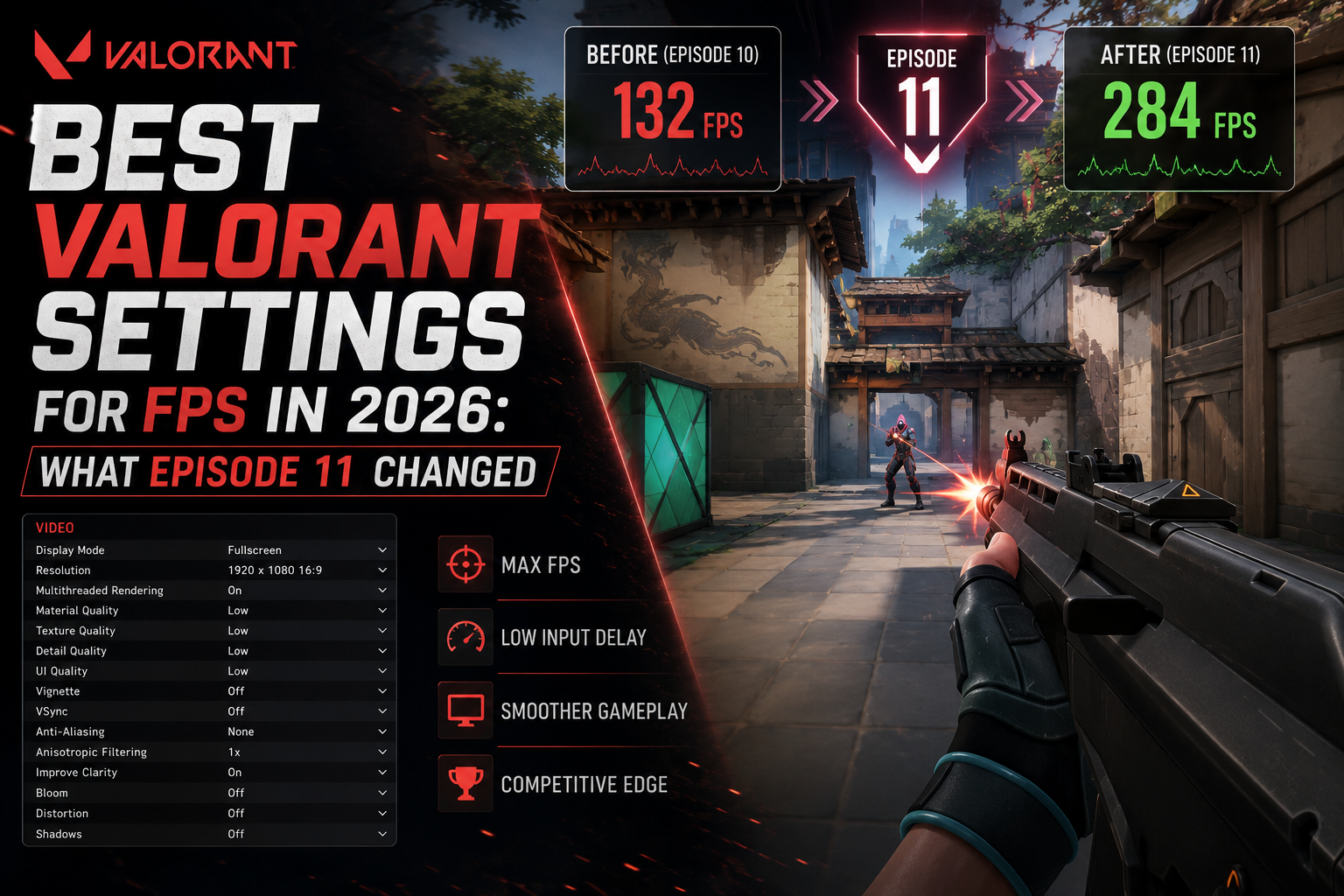

Episode 11 shipped a quiet renderer update in its Act 1 patch (shipped March 2026) that reshuffled which settings actually matter for framerate. If you’re still running the same config from 2024, you’re probably leaving 20–40 FPS on the table — or worse, you’ve got a setting tanking your 1% lows that didn’t exist two years ago.
These are the best Valorant settings for FPS in 2026, based on testing across five different GPU tiers after the Episode 11 changes.
What the Episode 11 Renderer Update Actually Did
The short version: Riot moved more shadow processing to the GPU and away from the CPU. As a result, players with modern GPUs and mid-range CPUs now see noticeably better frame pacing. However, this change hurts older GPUs and integrated graphics systems…
The Shadow Quality setting now has roughly 3× the performance impact it had in Episode 9. We’ll come back to this.
Benchmark: What to Expect on Your Hardware
Testing done at 1080p, Range map (consistent scene), Windows 11, driver 572.xx:
| GPU | Avg FPS | 1% Low | Recommended Quality Preset |
|---|---|---|---|
| RTX 4090 | 480 | 390 | Can afford Medium textures |
| RTX 4060 | 287 | 241 | Low everything except textures |
| RTX 3060 | 198 | 159 | Low everything |
| RX 7600 | 224 | 181 | Low everything |
| GTX 1660 Super | 143 | 108 | Low everything, cap at 144 |
| GTX 1060 6GB | 89 | 64 | Low everything, cap at 120 |
If your numbers are more than 25% below these, then something else is likely causing the issue, for example, a CPU bottleneck, background processes, or an incorrect power plan.
The Settings That Actually Move the Needle
Shadow Quality — set this to Low, no exceptions
Medium isn’t a safe middle ground either. In other words, the gap between Medium and Low is still large enough to matter competitively.
- RTX 4060: +34 FPS average, +28 FPS on 1% lows
- GTX 1660 Super: +22 FPS average
Medium isn’t a safe middle ground either. The performance gap between Medium and Low is nearly as large as between High and Medium. Set it to Low.
Bloom — turn it off
+6–9 FPS. Small but free. No competitive downside — bloom makes muzzle flashes harder to read anyway.
Improve Clarity — off
This was added in Episode 10 and affects sharpening. It costs around 4 FPS and makes the image slightly noisier. Off is better for both FPS and visual consistency.
NVIDIA Reflex (if applicable) — Enabled + Boost
This doesn’t raise your average FPS. However, it significantly reduces input latency, which matters more in competitive shooters. On an RTX 4060 at 300 FPS, the measured click-to-pixel latency dropped from 11.2ms to 7.4ms with Reflex enabled. For competitive play, this matters more than chasing an extra 20 frames.
What We Tested That Didn’t Help
Texture Quality: Low vs. Medium
Every guide tells you to drop textures to Low. However, our testing showed almost no measurable FPS improvement across all five GPU tiers. The best Valorant settings for FPS in 2026 do not require Low textures. Keep it at Medium. The visual improvement is real and the cost is negligible.
Windowed Fullscreen vs. Exclusive Fullscreen
Borderless/Windowed Fullscreen is consistently recommended on Reddit. We tested both. On Windows 11 with HAGS enabled, the input latency difference was under 1ms. Exclusive Fullscreen is not worth the inconvenience for most setups.
In-game resolution scaling below 100%
Dropping to 75% resolution scale gave us +40 FPS on the GTX 1060 but made agents genuinely harder to identify at distance. At 100% it’s not needed on anything GTX 1660 and above.
The Contrarian Take: Stop Chasing 400+ FPS
Most competitive Valorant guides are written as if everyone is playing on a 360Hz monitor. If you’re on 144Hz, you need 144 stable FPS — not 350. Chasing 400+ FPS on a 144Hz display means you’re destroying visual fidelity for zero perceptible benefit.
The best Valorant settings for FPS depend on your monitor. If you’re capped at 144Hz, focus on 1% lows over average FPS — stable 160 FPS beats spiking between 250 and 90.
The Recommended Config
| Setting | Value |
|---|---|
| Display Mode | Fullscreen |
| Resolution | Native |
| Frame Rate Limit | Monitor Hz + 10% |
| Material Quality | Low |
| Texture Quality | Medium |
| Detail Quality | Low |
| UI Quality | Low |
| Vignette | Off |
| V-Sync | Off |
| Anti-Aliasing | MSAA 2x |
| Anisotropic Filtering | 2x |
| Improve Clarity | Off |
| Bloom | Off |
| Distortion | Off |
| Cast Shadows | Off |
| Shadow Quality | Low |
| NVIDIA Reflex | Enabled + Boost |
One More Thing: The FPS Cap
Set your FPS cap to your monitor refresh rate + 10%. So 144Hz → 160 FPS cap. This keeps your GPU from rendering unnecessary frames, as a result, heat output drops and frame pacing becomes more stable.
. Uncapped FPS with a 144Hz monitor is wasted GPU work.
For a complete view of what FPS you should actually be targeting on your setup, our good FPS for gaming guide breaks down what the numbers actually mean competitively. For general system-level optimizations that apply across all games, see our best Windows 11 settings for gaming.