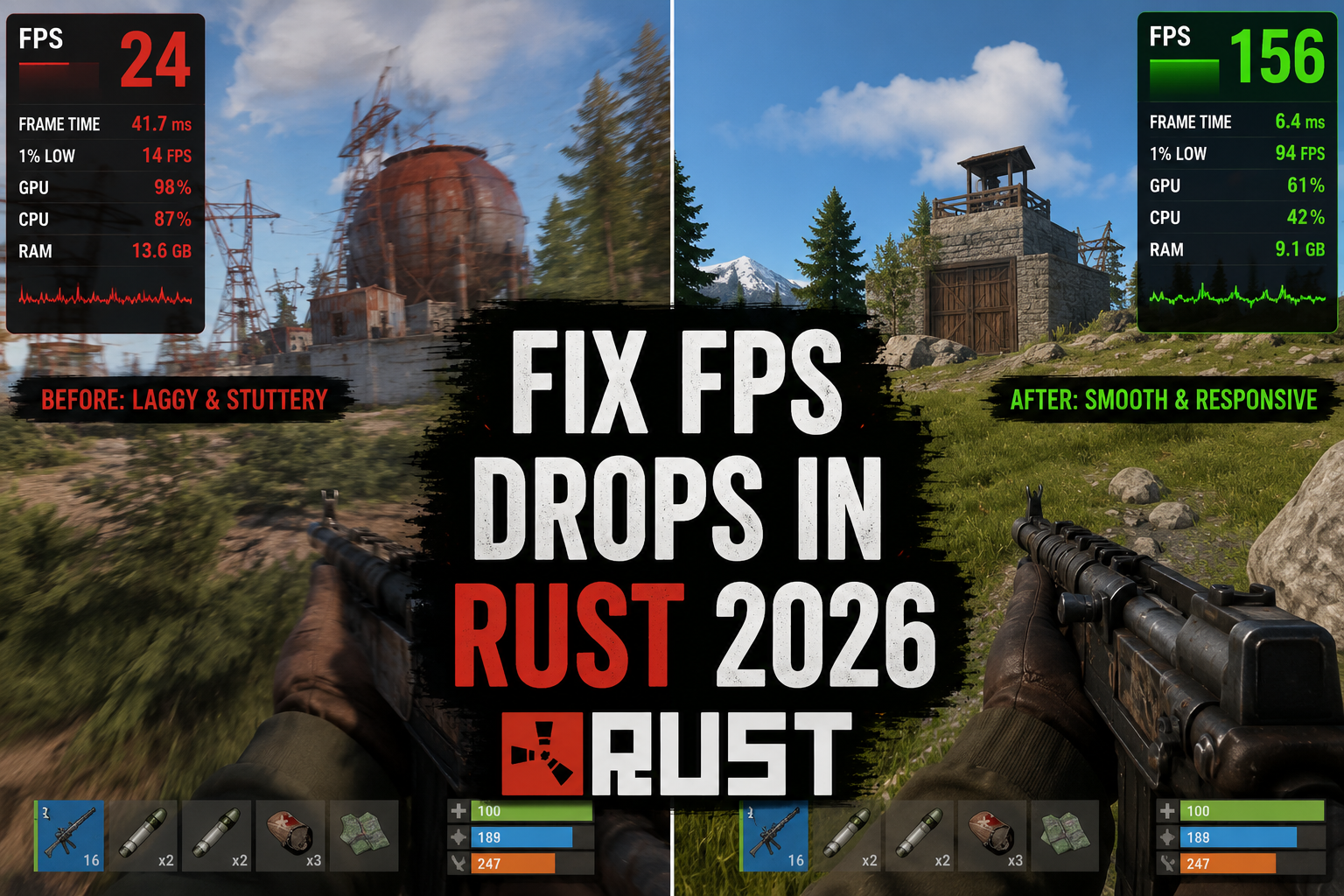

Quick answer, The best Rust settings for FPS in 2026 to fix drops: set Shadow Cascades to 2, Shadow Distance to 700 or below, and turn off Grass Displacement — this alone recovers 18–30 FPS on mid-range GPUs like the RTX 3060 and RX 6600. Add the launch options -high -malloc=system -cpuCount=[your physical core count], and if you’re on an RDNA 2 card, update to driver 25.2.1+ to fix the DX12 async compute hitching bug.
Rust has always been demanding on hardware, but the April 2026 update cycle brought new rendering changes that hit mid-range GPUs particularly hard. If you’ve been fighting stutters, frame time spikes, or unexplained dips below 60 FPS, this guide walks through every lever worth pulling — in order of impact.
Why Rust Drops Frames in 2026
Before changing settings blindly, it’s worth knowing what’s actually causing the problem. The biggest culprits right now:
- Shadow cascades — the reworked cascade system introduced in early 2026 is significantly more GPU-bound than the previous implementation
- Server-side entity counts — high-pop servers (200+ players) create CPU bottlenecks on 6-core and older processors
- Async compute scheduling — DX12 path has a known issue on RDNA 2 cards causing periodic 100–200ms hitches
- VRAM pressure — the new biome detail textures push above 6 GB on high settings
Understanding this helps you prioritize. Shadow and VRAM settings matter most for GPU-limited systems. If your CPU usage is pegged at 90%+ in task manager, skip to the server and startup sections below.
Best Rust Settings for FPS in 2026
Open Options → Graphics and work through these in order.
Graphics Quality (Overall Preset)
Never use the slider presets — they bundle together settings with wildly different performance costs. Set everything manually.
Shadows — Biggest Win
| Setting | Recommended | Why |
|---|---|---|
| Shadow Quality | Low | Drops GPU load 15–25% on most cards |
| Shadow Distance | 500–700 | Default 1000 is the main frame-time killer |
| Shadow Cascades | 2 | New in 2026; default 4 halves shadow performance |
Setting Shadow Cascades to 2 is the single most effective change for the April 2026 builds. Mid-range GPUs (RTX 3060, RX 6600) typically recover 18–30 FPS from this alone.
Draw Distance
- Max Drawable Objects: 1500–2000 (not the default 3000)
- Tree Distance: 200–300 (trees are expensive, especially near forests)
- Grass Displacement: Off — purely cosmetic, costs 3–6 FPS
Anti-Aliasing
- Use FXAA or TAA at low sharpness
- Avoid MSAA entirely in 2026 builds — it doesn’t play well with the new deferred renderer
- If you have an Nvidia card from the 3000 series or newer, enable DLSS Quality mode instead of any traditional AA
Ambient Occlusion
Set to Low or Off. AO in Rust runs on a half-resolution pass that still taxes the GPU significantly. The visual difference at ground level during combat is negligible.
Water Quality
Drop to Low. The ocean reflection system added in late 2025 is expensive and only looks meaningful from elevated vantage points.
Callout: Not sure if your GPU can handle Rust at your target settings?
Use the Rust FPS Calculator at fpscalculator.net/game/rust to get an estimated frame rate based on your exact GPU, CPU, and RAM before you spend an hour tweaking settings.
Best Rust Launch Options 2026
Right-click Rust in Steam → Properties → Launch Options. Add these:
-high -malloc=system -cpuCount=6 -exThreads=6
Adjust -cpuCount to your physical core count (not logical/threads). For a Ryzen 5 7600X (6 cores), use 6. For a Core i9-13900K (24 cores), cap at 8 — Rust doesn’t scale linearly beyond 8 and higher values create scheduler overhead.
The -malloc=system flag bypasses Rust’s custom allocator, which has caused memory fragmentation issues on Windows 11 24H2 and later.
| Flag | Effect | Recommended Value |
|---|---|---|
-high |
Sets Rust to High process priority in Windows | Always include |
-malloc=system |
Bypasses Rust’s custom allocator (fixes memory fragmentation on Windows 11 24H2+) | Always include |
-cpuCount=X |
Tells Rust how many physical cores to use | Your physical core count, capped at 8 (e.g. 6 for Ryzen 5 7600X, 8 for Core i9-13900K) |
-exThreads=X |
Sets worker thread count | Match your -cpuCount value |
NVIDIA and AMD Driver Settings
NVIDIA Control Panel (3D Settings → Rust.exe)
| Setting | Recommended Value |
|---|---|
| Max Frame Rate | Cap 5 below monitor refresh (e.g. 139 for 144Hz) |
| Low Latency Mode | Ultra |
| Texture Filtering Quality | Performance |
| Power Management Mode | Prefer Maximum Performance |
AMD Adrenalin (Game Profiles)
| Setting | Recommended Value |
|---|---|
| Radeon Anti-Lag | On |
| Texture Filtering Quality | Performance |
| Wait for Vertical Refresh | Always Off |
| HAGS | Off (causes stutter on RDNA 2 in 2026 builds) |
RDNA 2 owners (RX 6600, 6700 XT, 6800 XT): install driver 25.2.1 or newer. Earlier 2026 drivers have a DX12 async compute bug specific to Rust that causes the periodic hitches mentioned above. This is not an in-game setting — it’s a driver bug with a released fix.
Windows Optimizations Worth Doing
These take under 10 minutes and are frequently skipped:
Game Mode and GPU Scheduling
- Game Mode: On (Settings → Gaming → Game Mode)
- Hardware-Accelerated GPU Scheduling (HAGS): On for Nvidia 3000+, Off for AMD RDNA 2 (causes stutter on AMD in 2026 builds)
Power Plan
Set to High Performance or Ultimate Performance (enable Ultimate via PowerShell: powercmd /setactive scheme_ultimate). Balanced mode throttles CPU frequency between frames, adding latency.
Paging File
If you have 16 GB RAM, set a manual paging file of 8–16 GB on your SSD. Rust’s memory allocator can spike above physical RAM on large servers, causing hard stutter when Windows scrambles to allocate virtual memory.
Hardware Tier: What FPS to Expect
After applying all settings above at 1080p, here’s what’s realistic in mid-pop servers (100–150 players):
Budget Tier
| GPU | CPU | RAM | Expected FPS |
|---|---|---|---|
| GTX 1660 Super | Ryzen 5 3600 | 16 GB DDR4 | 45–65 FPS |
| RX 580 8 GB | Core i5-9400F | 16 GB DDR4 | 35–55 FPS |
| RTX 2060 | Core i5-10400 | 16 GB DDR4 | 55–75 FPS |
At this tier, prioritize shadow settings and draw distance above everything else. Targeting a stable 60 FPS is realistic; chasing 100 will require compromises that make the game look significantly worse.
Mid-Range Tier
| GPU | CPU | RAM | Expected FPS |
|---|---|---|---|
| RTX 3060 Ti | Ryzen 5 5600 | 16 GB DDR4 | 80–110 FPS |
| RX 6700 XT | Ryzen 5 5600X | 16 GB DDR4 | 75–100 FPS |
| RTX 3070 | Core i7-10700K | 32 GB DDR4 | 90–120 FPS |
Mid-range users can typically run Medium shadows and draw distance of 1500 while staying above 90 FPS. Enable DLSS Quality (Nvidia) or FSR 2.1 Quality (AMD) to recover headroom for higher visual settings.
High-End Tier
| GPU | CPU | RAM | Expected FPS |
|---|---|---|---|
| RTX 4070 Super | Ryzen 7 7700X | 32 GB DDR5 | 130–170 FPS |
| RX 7900 GRE | Ryzen 9 7900X | 32 GB DDR5 | 120–155 FPS |
| RTX 4080 | Core i9-14900K | 32 GB DDR5 | 150–200 FPS |
High-end builds can run High shadows with cascade count 3, max grass at 200, and DLSS Performance for competitive play. CPU becomes the bottleneck on 200-player servers regardless of GPU — no amount of graphics settings changes will fix that.
Server-Side Factors You Can’t Control (But Can Avoid)
Some FPS drops in Rust aren’t your PC’s fault:
- High entity count servers — servers near the wipe end with 50,000+ placed objects cause client-side simulation load regardless of your GPU
- Raid servers — rocket explosions spawn hundreds of particle entities simultaneously, causing 1–3 second hitches on any hardware
- Official servers — no server-side optimization, run vanilla. Community servers with performance plugins (Oxide + NoLag) typically deliver 10–20% better client frametimes
Choose servers with under 150 population and under 3 days since wipe for the most stable performance.
FAQ
Quick Checklist to Fix FPS Drops Rust 2026
Before anything else, run through this list:
- [ ] Shadow Cascades set to 2
- [ ] Shadow Distance at 700 or below
- [ ] Launch options include
-malloc=systemand correct-cpuCount - [ ] AMD users on driver 25.2.1+, HAGS disabled
- [ ] Nvidia users with HAGS enabled, Low Latency Mode on Ultra
- [ ] Frame rate capped 5 below monitor refresh
- [ ] Power plan set to High Performance or Ultimate
- [ ] Playing on a server under 3 days old, under 150 pop
These steps together resolve the vast majority of frame drop complaints since the April 2026 patch. If you’ve done all of them and are still dropping frames, the bottleneck is almost certainly your CPU on high-population servers — at that point, server selection matters more than any graphics setting.
If you want to benchmark your specific hardware against Rust’s requirements before investing time in this process, the Rust FPS Calculator at fpscalculator.net/game/rust gives you a solid baseline estimate for your exact setup. It accounts for the 2026 patch performance changes and can tell you whether you’re GPU or CPU bottlenecked before you start.