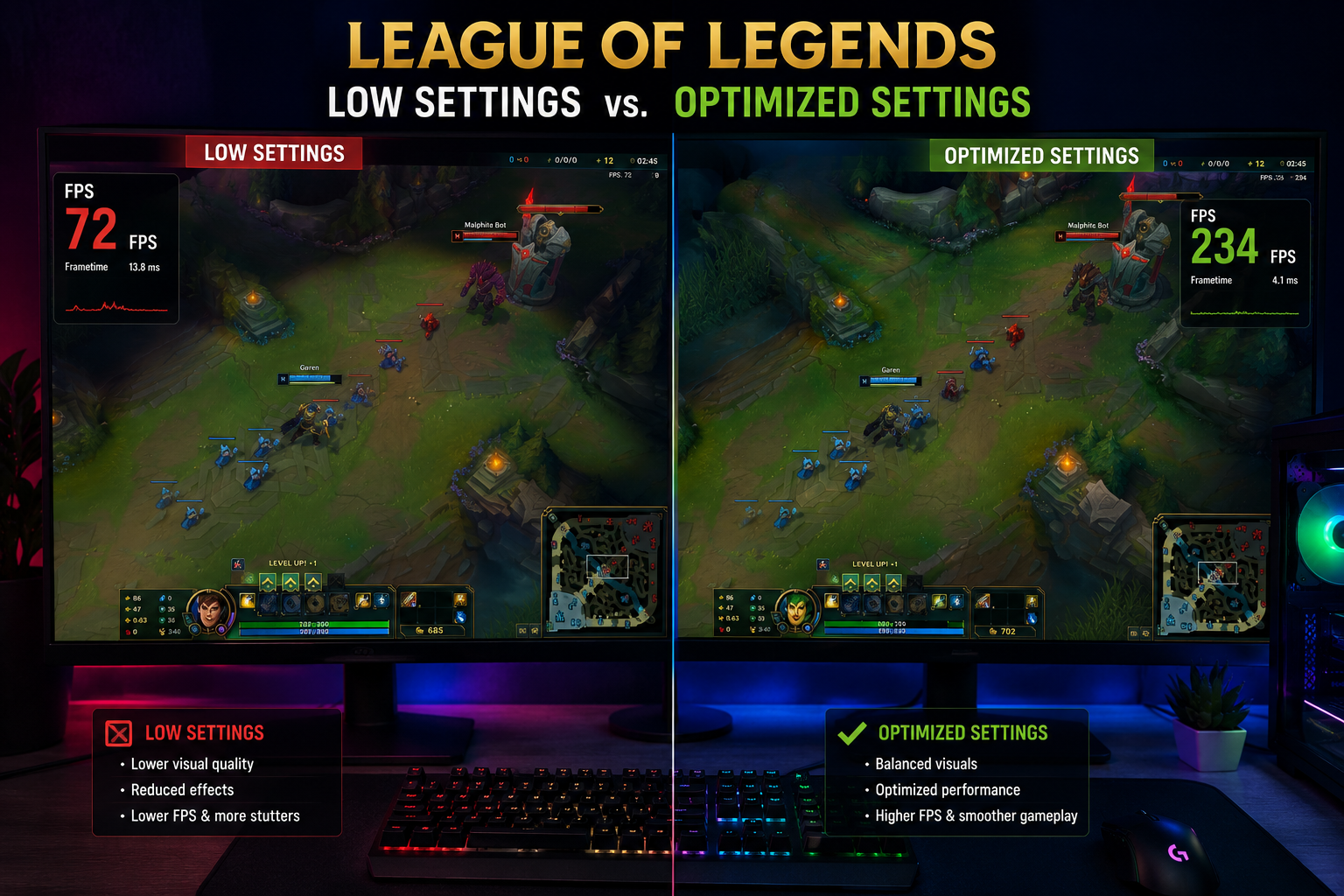

League of Legends is one of the most-played games on the planet, yet plenty of players are still leaving serious performance on the table. Whether you’re running a GTX 1060 from 2017 or a brand-new RTX 5070, dialing in the right configuration makes a tangible difference in smoothness, input lag, and how cleanly you can react to teamfights. This guide covers every setting worth touching in April 2026, with real numbers and practical recommendations for every hardware tier.
Why FPS Matters More Than You Think in League
League of Legends is a game built around micro-decisions and split-second reactions. At 60 FPS your monitor is refreshing every 16.7ms. At 144 FPS that drops to 6.9ms, and at 240 FPS it’s under 4.2ms. The difference is visible and, at higher ranks, genuinely competitive. Beyond the monitor ceiling, maintaining a frame buffer above your refresh rate keeps frame pacing smooth and prevents the stuttering that makes skill shots feel inconsistent.
The good news: LoL’s engine is old, CPU-bound, and highly tunable. Even modest hardware can hit 200+ FPS with the right configuration.
In-Game Video Settings: The Complete Breakdown
Open Settings → Video and work through every option. These are the best settings for League of Legends FPS regardless of your GPU tier.
Resolution and Display Mode
- Resolution: Always native to your monitor. Scaling down saves frames but blurs the minimap and makes skillshot hitboxes harder to read.
- Display Mode: Fullscreen — not Borderless Window. Fullscreen gives the GPU exclusive control, cutting input lag and improving frame pacing. On Windows 11, ensure “Hardware-Accelerated GPU Scheduling” (HAGS) is enabled in Display Settings for the biggest benefit.
- Frame Rate Cap: Set this to your refresh rate + 3 to 5 frames (e.g., 248 FPS on a 240Hz monitor). An uncapped frame rate causes unnecessary heat, coil whine, and thermal throttling with no perceptual benefit above your monitor’s ceiling.
Graphics Quality Options
| Setting | Recommended Value | FPS Impact |
|---|---|---|
| Quality | Custom | — |
| Resolution Scale | 100% | Low |
| Character Quality | Medium | High |
| Environment Quality | Medium | High |
| Effects Quality | Low | Very High |
| Shadows | No Shadows | Very High |
| Frame Rate Cap | See above | — |
| Anti-Aliasing | Off | High |
| Wait for Vertical Sync | Off | Critical |
| HUD Scale | Personal preference | None |
The single biggest gain: Set Effects Quality to Low and Shadows to No Shadows. In hectic teamfights with 10 champions on screen, these two settings alone can recover 40–80 FPS on mid-range hardware.
Anti-Aliasing and Post-Processing
Turn them both off. League’s art style holds up well without AA at native resolution, and the jagged edges are far less distracting than a 20–30 FPS penalty during pentakill attempts.
Windows and System-Level Optimizations
The best settings for League of Legends FPS don’t stop at the in-game menu. Windows configuration is just as important.
Power Plan
Navigate to Control Panel → Power Options and select High Performance or, on Ryzen systems, AMD Ryzen Balanced. Never use “Balanced” for gaming — it allows the CPU to throttle down between frames, causing inconsistent frametimes.
GPU Driver Settings (NVIDIA)
Open NVIDIA Control Panel → Manage 3D Settings → Program Settings, add League of Legends.exe, and apply:
- Power Management Mode: Prefer Maximum Performance
- Texture Filtering – Quality: High Performance
- Vertical Sync: Off (always override this at the driver level)
- Low Latency Mode: Ultra (reduces pre-rendered frames in the pipeline)
- NVIDIA Reflex: Enable + Boost if your GPU supports it — this is the highest-impact single toggle for input lag in LoL
GPU Driver Settings (AMD)
In Radeon Software → Gaming → League of Legends:
- Anti-Lag+: Enabled
- Radeon Boost: Disabled (it dynamically lowers resolution, which is never what you want at fixed settings)
- Texture Filtering Quality: Performance
- Wait for Vertical Refresh: Off
Windows Game Mode and HAGS
- Game Mode: On (Settings → Gaming → Game Mode)
- Hardware-Accelerated GPU Scheduling: On (Display Settings → Graphics → Default graphics settings)
- Variable Refresh Rate: On (same menu, if your monitor supports FreeSync or G-Sync)
Hardware Tier FPS Expectations
If you want to sanity-check whether your configuration is performing correctly, use these benchmarks as a baseline at 1080p with the settings above applied.
Budget Tier (Pre-2020 Hardware)
- GTX 1060 6GB / RX 580: 120–180 FPS
- GTX 1650 / RX 5500 XT: 150–220 FPS
- i5-8400 / Ryzen 5 2600: Adequate CPU for LoL; ensure XMP/EXPO is enabled in BIOS
- RAM: 8GB is playable but 16GB dual-channel is a meaningful upgrade — LoL loads assets into RAM aggressively
Budget tip: If you’re hitting sub-100 FPS on a GTX 1060, your bottleneck is almost certainly CPU or background processes, not the GPU. Open Task Manager during a game and check CPU usage before adjusting graphics settings further.
Mid-Range Tier (2021–2023 Hardware)
- RTX 3060 / RX 6600 XT: 240–400 FPS
- RTX 3070 / RX 6700 XT: 300–480 FPS
- i5-12600K / Ryzen 5 5600X: These CPUs will rarely be your bottleneck in LoL
- At this tier, a 144Hz or 240Hz monitor is the correct next upgrade — the GPU can feed it
High-End Tier (2024–2026 Hardware)
- RTX 4070 Super / RX 7800 XT: 400–600+ FPS
- RTX 5070 / RX 9070 XT: 500–700+ FPS
- i7-14700K / Ryzen 7 9800X3D: LoL is so CPU-light that a 9800X3D offers no advantage here over a 5600X — budget elsewhere
- At this tier, cap at 360 FPS or your monitor’s ceiling; going higher generates heat for zero visual benefit
Network and Ping Settings
FPS and ping are separate problems, but lag spikes can feel like frame drops. Check these:
- Settings → Network: Enable Reduce Packet Loss Mode if you’re on Wi-Fi or a congested connection
- Disable large file downloads and streaming during ranked sessions — LoL’s bandwidth is light (~50 Kbps), but competing traffic causes jitter
- On Windows 11, set LoL’s network priority:
Get-NetAdapterAdvancedPropertyin PowerShell, or use Intelligent Plan / QoS in your router settings if available
Benchmarking Your Changes
Don’t guess whether your changes worked — measure them.
- Start a custom game with bots
- Set up a repeatable test: run to the same bushes, trigger the same fight at the 3-minute mark
- Use Windows + G (Xbox Game Bar) or a lightweight overlay to record average and 1% low FPS
- Change one setting at a time and retest
The 1% low is more important than the average. A system averaging 300 FPS but dropping to 60 FPS during teamfights feels worse than one holding a steady 180 FPS minimum.
Check your hardware’s exact FPS potential
Before spending hours tweaking settings, see what your specific GPU and CPU combination should realistically deliver in League of Legends. The League of Legends FPS Calculator at fpscalculator.net lets you input your exact hardware and get estimated FPS benchmarks across different quality presets — so you know whether your target is 144, 240, or 360 FPS before you start.
Common FPS Killers to Check First
If you’ve applied the best settings for League of Legends FPS and are still underperforming, these are the usual suspects:
- XMP/EXPO disabled in BIOS: DDR4 at 2133 MHz instead of 3200–3600 MHz is a 15–25% CPU performance loss in games
- Thermal throttling: Use HWMonitor to confirm your CPU isn’t hitting 95°C+ under load — repasting is a $10 fix that can recover 20% performance
- Background apps: Discord with GPU acceleration, Chrome with hardware acceleration, OBS running idle — each steals GPU cycles
- Outdated chipset drivers: More impactful than GPU drivers on AMD platforms; download from AMD.com directly
- Antivirus real-time scanning: Exclude the League of Legends folder in Windows Defender settings
Quick-Reference Checklist
- [ ] Display mode set to Fullscreen
- [ ] VSync off (in-game and at driver level)
- [ ] Effects Quality: Low
- [ ] Shadows: No Shadows
- [ ] Anti-Aliasing: Off
- [ ] Frame rate cap: refresh rate + 3–5
- [ ] Windows Power Plan: High Performance
- [ ] HAGS and Game Mode: On
- [ ] NVIDIA Low Latency Mode: Ultra / AMD Anti-Lag+: On
- [ ] XMP/EXPO enabled in BIOS
- [ ] Background apps closed
Apply everything on this list and most systems will see an immediate 20–50% improvement in average FPS and a significant reduction in stuttering — which is ultimately what makes the best settings for League of Legends FPS feel like a hardware upgrade without spending a penny.