
Mastering Fortnite Settings for Best FPS: The High-End Enthusiast Guide
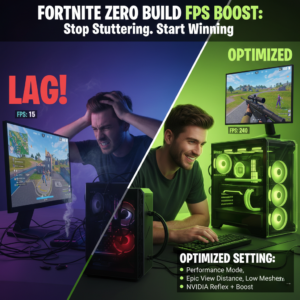
Listen, choom, we’ve all been there. You’ve spent a fortune on a rig that looks like it belongs in a NASA lab, yet you’re still seeing frame drops during intense end-game build fights. Whether it’s a micro-stutter or an annoying input delay, even a beastly machine needs a tune-up to truly shine. To get those silky-smooth frames, you need the right fortnite settings for best fps to ensure your hardware isn’t working against itself,.
The Diagnosis: Why Even High-End Rigs Stutter
You might think a high-end GPU prevents all lag, but Fortnite is a notoriously CPU-bound game. When the map gets crowded with players and structures, your processor can become a major bottleneck, struggling to keep up with the action.
Beyond the game itself, Windows bloatware and background processes often cannibalize your system resources. If your VRAM is poorly managed or your power plan is set to “Efficiency,” you’re leaving performance on the table,.
In-Game Fortnite Settings for Best FPS
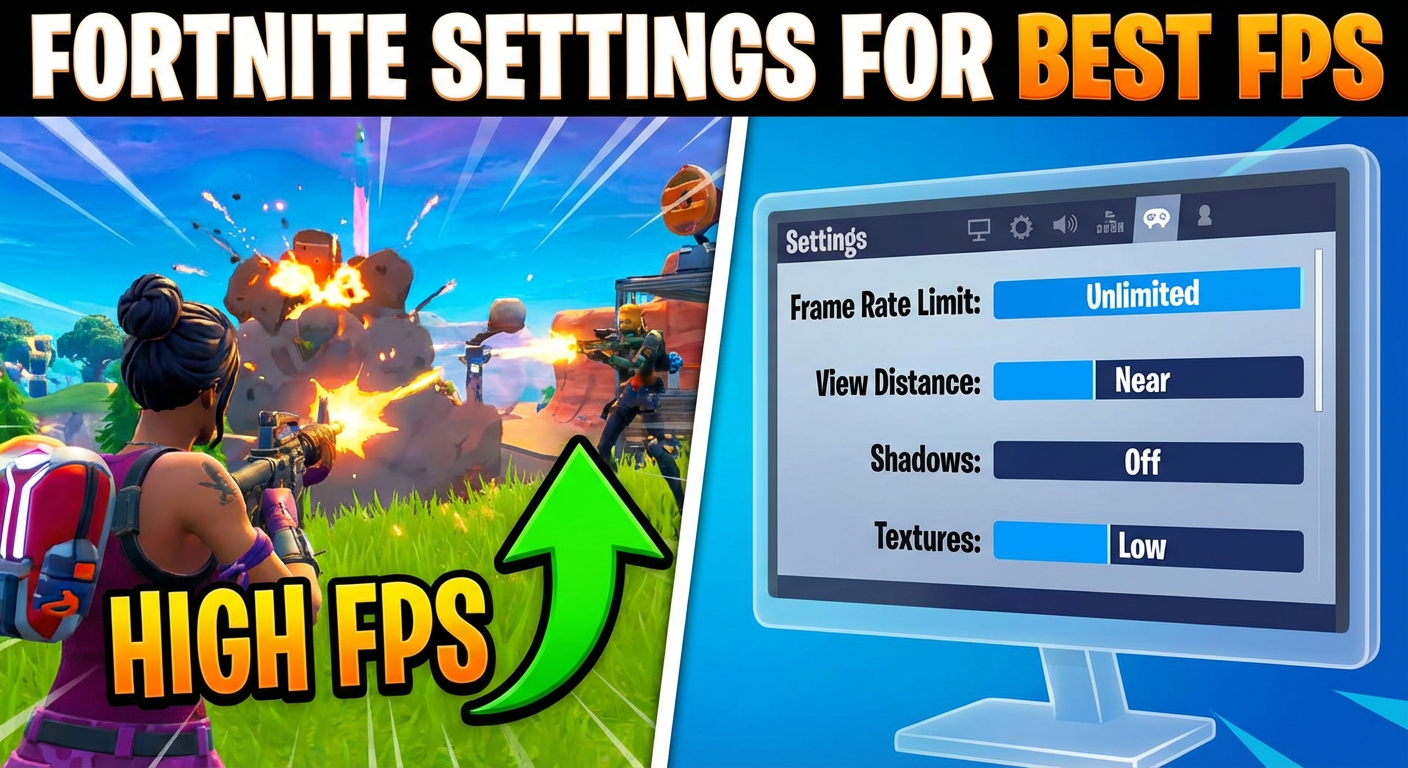
To start, skip the fancy cinematics and focus on raw performance. Target: 1440p / 240+ FPS.
- Rendering Mode: Use the new Performance Mode. While DX12 is great for AMD users, this mode is better at utilizing CPU resources during chaotic fights.
- Display Mode: Use Full Screen for the lowest possible input delay.
- Frame Rate Limit: Cap this to your monitor’s refresh rate or one step above to maintain perceived smoothness and better frame timing.
- 3D Resolution: Keep this at 100% unless you are GPU bound; lowering it on a high-end rig only makes the game look blurry without helping frames.
- Meshes: Set to Low. Not only is it easier to run, but breaking animations are a few frames shorter, giving you a competitive edge.
Advanced Optimization and Low Latency
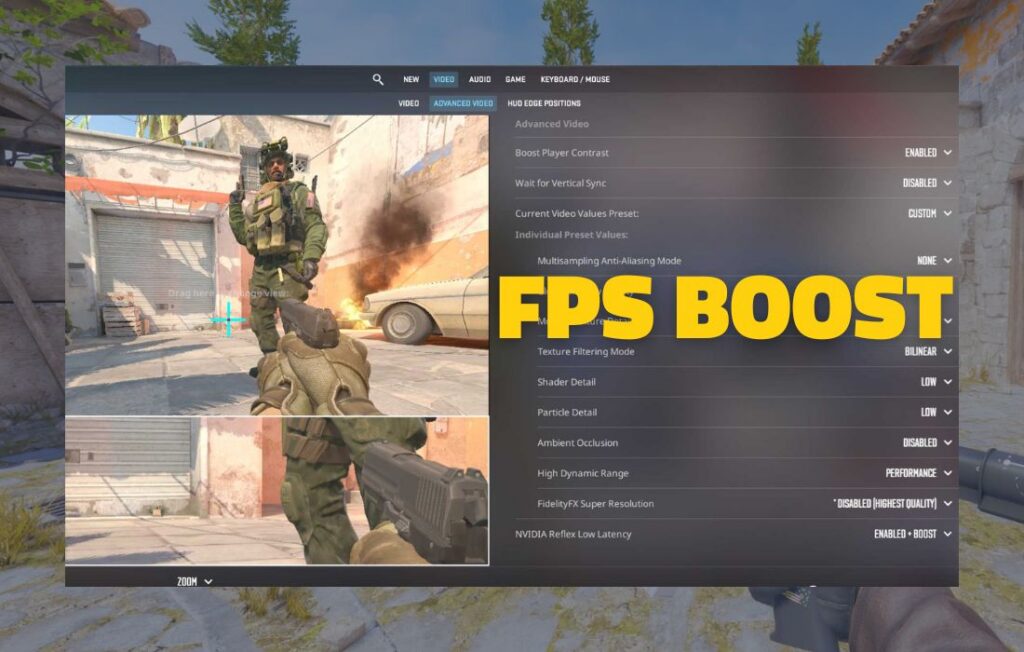
If you’re rocking an Nvidia card, Nvidia Reflex Low Latency is your best friend. Setting this to On + Boost prevents your GPU from downclocking, ensuring it’s always ready to pump out frames instantly.
For the ultimate Fortnite settings for best FPS, don’t forget to disable “Report Performance Stats” in the game tab. You’re here to win, not be a “guinea pig” for Epic’s data collection.
Windows and BIOS Tweaks for Enthusiasts
Your OS needs to be as lean as your gameplay. Turn on Game Mode to tell your PC to prioritize Fortnite over background junk.
- Hardware-Accelerated GPU Scheduling: Enable this to let your GPU handle its own scheduling, taking the load off your CPU.
- Ultimate Performance Power Plan: Use the command prompt to unlock this hidden plan so your CPU never drops into a low-power state,.
- BIOS Essentials: Ensure XMP/DOCP is enabled so your RAM runs at its advertised speed,. Also, turn on Resizable Bar to allow your CPU to access your entire VRAM at once, which can boost FPS by up to 10%.
For a complete OS overhaul, our best Windows 11 settings for gaming guide walks you through every tweak — power plans to HAGS — that unlocks extra FPS in Fortnite and beyond.
High-End Hardware Specifics
If you are running a top-tier Nvidia GPU, go into the Nvidia Control Panel and set Shader Cache Size to 10GB. This prevents the game from constantly deleting and reloading shaders, which is a common cause of stutters. For AMD users, ensure “Surface Format Optimization” is toggled On to significantly reduce RAM and VRAM usage.
Ready to see how your specific components stack up? Use our Main Fortnite FPS Calculator to see your projected performance.
Summary: The Final Verdict
Getting the fortnite settings for best fps isn’t just about turning everything to “Low.” It’s about balancing your CPU load, nuking Windows bloat, and ensuring your BIOS is actually letting your hardware run at full throttle,,. Fix these, and you’ll go from a “potato PC” feel to a true high-end experience.