
Whether you’re dropping frames in a firefight or struggling to hit 60 FPS on medium settings, knowing how to boost FPS on PC is the single most valuable skill a PC gamer can develop. This guide covers every tier — from software tweaks that cost nothing to hardware upgrades that pay off for years.
Start Here: Know Your Baseline
Before changing anything, you need a number to beat. Use an in-game FPS counter (NVIDIA Overlay, AMD Adrenalin, or Steam’s built-in counter under Settings > In-Game) and stress-test your system in a demanding scene. Write down your average FPS and 1% low — the 1% low tells you where stutters come from.
Check your FPS instantly: Use the free tool at fpscalculator.net/games to estimate expected framerates for your hardware before and after any changes. It’s the fastest way to set realistic targets and spot bottlenecks.
Software Optimizations (Free, Do These First)
1. Update Your GPU Drivers
Stale drivers leave performance on the table. NVIDIA and AMD both ship driver-level optimizations for major new releases — sometimes a single update adds 5–15% in specific titles.
- NVIDIA: GeForce Experience or manual download from nvidia.com
- AMD: Adrenalin Edition software, check “Optional” updates too
- Intel Arc: Intel Arc Control app
2. Set Windows Power Plan to High Performance
Windows defaults to “Balanced,” which throttles your CPU and GPU to save power. Switching to High Performance or Ultimate Performance (available on Windows 10/11 Pro) can add 5–20 FPS in CPU-bound games like strategy titles and open-world RPGs.
Control Panel > Power Options > High Performance
On laptops, this is even more critical — battery-saving modes can cut GPU clock speeds by 30–40%.
3. Enable Hardware-Accelerated GPU Scheduling (HAGS)
Available on Windows 11 and Windows 10 (2004+) with NVIDIA Turing or AMD RDNA GPUs. HAGS reduces CPU overhead in the rendering pipeline.
Settings > Display > Graphics > Change default graphics settings > Hardware-accelerated GPU scheduling: On
Results vary by game, but most users see 2–8 FPS improvements with no downside.
4. Disable Xbox Game Bar and Background Apps
Xbox Game Bar runs system hooks that add latency even when the overlay isn’t visible.
Settings > Gaming > Xbox Game Bar > Off
Also kill background apps before launching: Discord’s hardware acceleration, Chrome, OneDrive sync, and antivirus real-time scans all steal CPU cycles. Use Task Manager (Ctrl+Shift+Esc) to spot processes hogging CPU or RAM.
If your CPU is consistently running hot under gaming load, read our guide on how to lower CPU usage while gaming for a dedicated fix.
5. Configure NVIDIA/AMD Control Panel
NVIDIA users:
- Power Management Mode: Prefer Maximum Performance
- Texture Filtering Quality: High Performance
- Low Latency Mode: Ultra (for competitive games)
- Vertical Sync: Off (use in-game vsync or a frame limiter instead)
AMD users:
- Radeon Anti-Lag: On
- Radeon Boost: On (for supported titles)
- Image Sharpening: adjust to taste after enabling upscaling
The Fastest FPS Boost Methods (Sorted by Time Investment)
Not everyone has 30 minutes to work through a full optimization guide. Here’s the same advice sorted by how long each fix actually takes — so you can boost FPS in under 5 minutes if that’s all you have.
Under 2 Minutes — One Toggle, Immediate Impact
Switch your Windows power plan — the single highest-impact change most people skip. Go to Control Panel > Power Options > High Performance. On laptops this can recover 20–40 FPS instantly because battery mode throttles your GPU clock by default.
Kill Xbox Game Bar — Settings > Gaming > Xbox Game Bar > Off. It runs background hooks that add latency even when you’re not using the overlay.
5–10 Minutes — Driver and Control Panel Changes
Update your GPU driver — NVIDIA and AMD ship game-specific optimizations with every major release. A driver that’s 3+ months old can cost 10–15 FPS in recently released titles. Use GeForce Experience (NVIDIA) or Adrenalin (AMD) and check for optional updates too.
Enable HAGS — go to Settings > Display > Graphics > Hardware-Accelerated GPU Scheduling > On. Works on Windows 10/11 with NVIDIA Turing (RTX 20-series+) or AMD RDNA GPUs. Most users see 2–8 FPS with no downside.
Set your GPU to maximum performance — in NVIDIA Control Panel set Power Management Mode to Prefer Maximum Performance. In AMD Adrenalin, turn Radeon Anti-Lag on. Takes 2 minutes and prevents your GPU from downclocking between frames.
10–20 Minutes — In-Game Settings (Highest ROI)
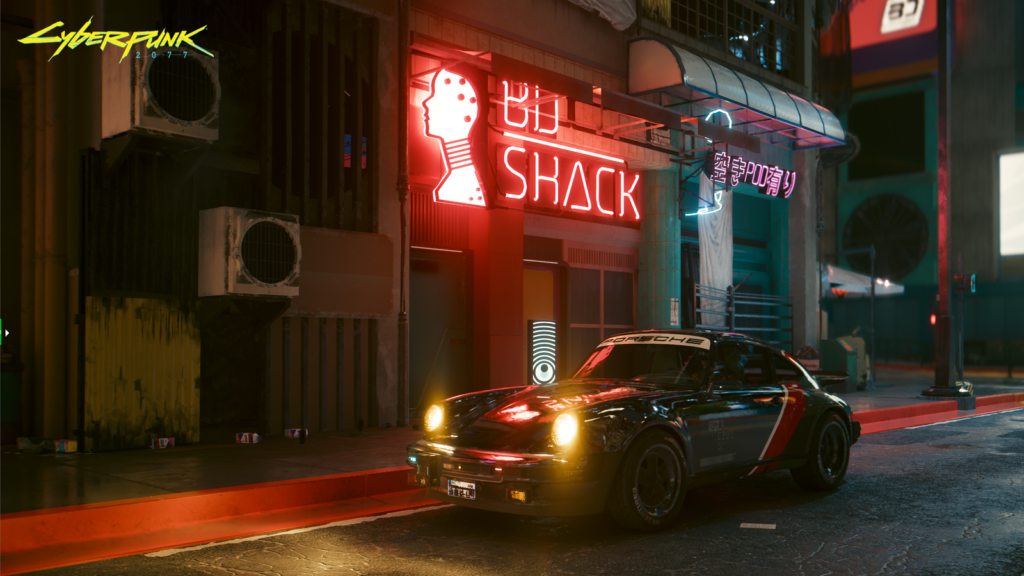
Enable DLSS / FSR / XeSS — this is the single biggest free FPS boost available in 2026. In Cyberpunk 2077, switching from native 1440p to DLSS Quality on an RTX 4070 jumps framerates from ~65 FPS to over 100 FPS — a $0 upgrade. Find it in your game’s graphics menu under Upscaling or Anti-Aliasing.
Lower shadows and ambient occlusion first — these two settings carry the highest GPU cost with the least visible impact on gameplay. Set Shadow Quality to Medium or Low and turn Ambient Occlusion off entirely. In most titles this recovers 15–25 FPS on its own.
30+ Minutes — BIOS and System-Level (One-Time Setup)
Enable XMP/EXPO for your RAM — your RAM is almost certainly running slower than its rated speed unless you’ve done this. Restart and enter BIOS (press DEL or F2 at boot) → find AI Tweaker, OC, or Overclocking section → enable XMP Profile 1 (Intel) or EXPO Profile 1 (AMD). This adds 5–15 FPS in CPU-bound games like Valorant, Fortnite, and CS2 at zero cost.
Before and after any of these changes, use the free FPS Calculator to see what your hardware should actually be hitting. If you’re still well below the estimate after applying these fixes, you likely have a thermal or bottleneck issue the calculator can help you identify.
In-Game Settings: The Biggest FPS Gains
This is where how to increase FPS on PC pays off most immediately. Some settings cost far more than they’re worth visually.
Settings to Lower First
| Setting | Impact | Recommended Value |
|---|---|---|
| Resolution Scale | Very High | 100% (don’t sacrifice native) |
| Shadow Quality | High | Medium or Low |
| Ambient Occlusion | High | Off or SSAO |
| Anti-Aliasing | High | TAA or DLSS/FSR instead |
| Draw Distance | Medium | Medium |
| Motion Blur | Low (FPS) | Off |
| Depth of Field | Low | Off |
| Volumetric Fog | High | Low |
Different games respond differently to graphics settings. For example, in Season 4, Elden Ring Nightreign’s new volumetric fog and dynamic shadow systems can dramatically reduce performance. See our Best PC Settings Elden Ring Nightreign Season 4 guide for the exact settings that recover the most FPS after the latest update.
Enable Upscaling Technology
This is the highest-ROI in-game change available in 2026:
- NVIDIA DLSS 3.5+ (RTX 2000 series and up): Quality mode gives near-native visuals at 40–70% more FPS. Frame Generation (RTX 4000+) can double your framerate.
- AMD FSR 3.1: Works on any GPU including Intel and older NVIDIA. Quality mode adds 30–50% FPS with minimal visual cost.
- Intel XeSS: Best on Arc GPUs, solid on others.
In a game like Cyberpunk 2077, switching from native 1440p to DLSS Quality on an RTX 4070 pushes framerates from ~65 FPS to over 100 FPS. That’s a $0 upgrade.
Hardware Tier: Realistic FPS Expectations in 2026
Understanding where your hardware sits helps you set achievable targets and know when software tweaks have a ceiling.
Budget Tier ($150–$300 GPU)
Example hardware: RX 6600, RTX 3060, Intel Arc A580
- 1080p/High settings: 60–90 FPS in most titles
- 1080p/Competitive settings (low): 100–144 FPS
- 1440p: 40–60 FPS, needs FSR upscaling to hit 60+
- Best strategy: Lower shadows and AO, enable FSR Quality, target 1080p144
Mid-Range Tier ($300–$500 GPU)
Example hardware: RX 7700 XT, RTX 4070, RTX 3080
- 1080p/Ultra settings: 120–165+ FPS
- 1440p/High settings: 80–120 FPS
- 1440p/DLSS Quality: 100–150 FPS
- Best strategy: Target 1440p with DLSS/FSR enabled, 144Hz or 165Hz monitors shine here
High-End Tier ($500–$1000+ GPU)
Example hardware: RX 7900 XTX, RTX 4080 Super, RTX 4090
- 1440p/Ultra + DLSS Quality: 140–200+ FPS
- 4K/High settings: 60–100 FPS depending on title
- 4K + DLSS Quality: 80–130 FPS
- Best strategy: 4K/144Hz or 1440p/240Hz are realistic targets; CPU becomes the bottleneck in many games
CPU and RAM Tweaks
Enable XMP/EXPO for Your RAM
Most DDR4 and DDR5 kits ship running at base JEDEC speeds (2133 MHz or 4800 MHz) regardless of what’s printed on the label. Enabling XMP (Intel) or EXPO (AMD) in BIOS takes 30 seconds and can add 5–15 FPS in CPU-bound games.
BIOS > AI Tweaker / OC > XMP/EXPO Profile 1
Upgrade to Fast Dual-Channel RAM
If you’re running a single 16GB stick, adding a matched second stick activates dual-channel mode and is effectively a free 10–20% CPU gaming performance upgrade. This matters enormously on integrated graphics (AMD APUs, Intel Iris Xe) where VRAM and system RAM share bandwidth.
Check for CPU Thermal Throttling
A CPU hitting 95°C+ will throttle clock speeds mid-game to protect itself, causing sudden FPS drops that look like a GPU problem. Download HWiNFO64, run it alongside your game, and watch the “CPU Package Power” and temperature readings. If temps stay above 90°C, reapply thermal paste (around $10) or upgrade your cooler.
Storage and System Maintenance
SSDs don’t directly increase FPS, but they eliminate stutter caused by shader compilation and asset streaming in open-world games. If you’re on an HDD and see 1-second freezes every time you enter a new area, moving your game to a SATA SSD will fix it. An NVMe SSD is even better for titles with aggressive streaming (Flight Simulator, Starfield).
Also run these periodically:
- Disk cleanup: Remove shader caches in
%AppData%\NVIDIA\GLCacheand%AppData%\AMD\GLCache— outdated shader caches cause stutters. - Full GPU driver reinstall: Use DDU (Display Driver Uninstaller) in safe mode before installing fresh drivers if you’re seeing unexplained performance issues.
When Software Isn’t Enough
If you’ve applied every setting above and you’re still not hitting your target FPS, you’ve hit a hardware ceiling. The fastest way to understand how to increase FPS on PC in your specific situation is to identify your bottleneck:
- GPU-bound (90–100% GPU usage, low CPU usage): Upgrade GPU or lower graphical settings
- CPU-bound (high CPU usage, GPU under 80%): Upgrade CPU, enable faster RAM, or reduce draw distance/simulation settings
- VRAM-limited (driver crashes, massive stutter at high res): Lower texture quality or upgrade to a GPU with more VRAM
Not sure where your bottleneck is? Head to fpscalculator.net/games and enter your current specs. The calculator estimates your expected FPS and highlights which component is holding you back — before you spend a dollar on hardware.
Quick Reference Checklist
- Update GPU drivers
- Switch to High Performance power plan
- Enable HAGS
- Disable Xbox Game Bar and background apps
- Configure GPU control panel (max performance, vsync off)
- Enable DLSS / FSR / XeSS in-game
- Lower shadows, AO, volumetric fog
- Enable XMP/EXPO in BIOS
- Check CPU thermals with HWiNFO64
- Move game to SSD
GPU drivers, DLSS/FSR versions, and Windows updates shift these numbers every few months. We post updated benchmarks and new one-click optimization checklists on Telegram as soon as something changes — plus a free printable version of this exact 10-fix list.
Apply these in order, test after each change, and you’ll have a clear picture of exactly how much performance each one unlocks on your specific machine.
- If you’re playing demanding AAA titles, check our optimized Cyberpunk 2077 graphics settings guide for GTX 1650 and RTX 3050 for the best balance between FPS and visual quality.
- Competitive players can also use our Fortnite Zero Build FPS boost guide to reduce input lag and maximize frame rates.