
If you just picked up an RTX 5060 or you’re planning to build around one, you’re sitting on one of the best mid-range GPUs of 2026 — but raw hardware only gets you so far. The difference between 90 FPS and 144 FPS on this card often comes down to how well your drivers, in-game settings, and Windows configuration are tuned. This guide covers every layer of that stack so you can squeeze every frame out of your rig.
What to Expect From the RTX 5060
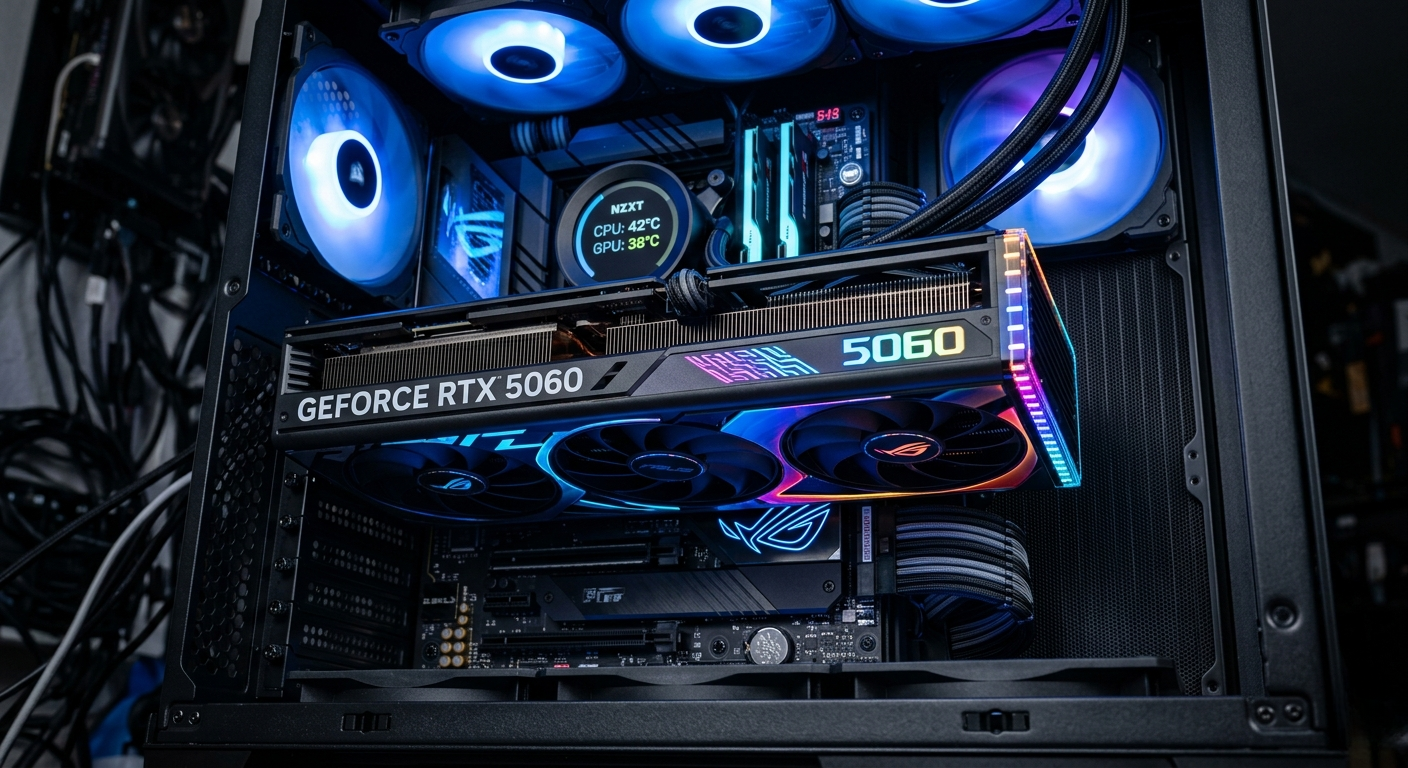
The RTX 5060 is built on Blackwell architecture with 8 GB of GDDR7 VRAM running at 28 Gbps, 3584 CUDA cores, and a 128-bit memory bus. It slots cleanly between the RTX 4060 Ti and the old RTX 4070, making it a strong 1080p card and a capable 1440p option in less demanding titles.
Before diving into settings, it helps to anchor expectations based on your full system, not just the GPU.
Hardware Tier FPS Expectations
Budget Tier — RTX 5060 + Ryzen 5 7600 or Core i5-13400F, 16 GB DDR5-4800, 1080p
- Fortnite (Competitive, Low/Medium): 200–280 FPS
- Valorant (Low): 400+ FPS
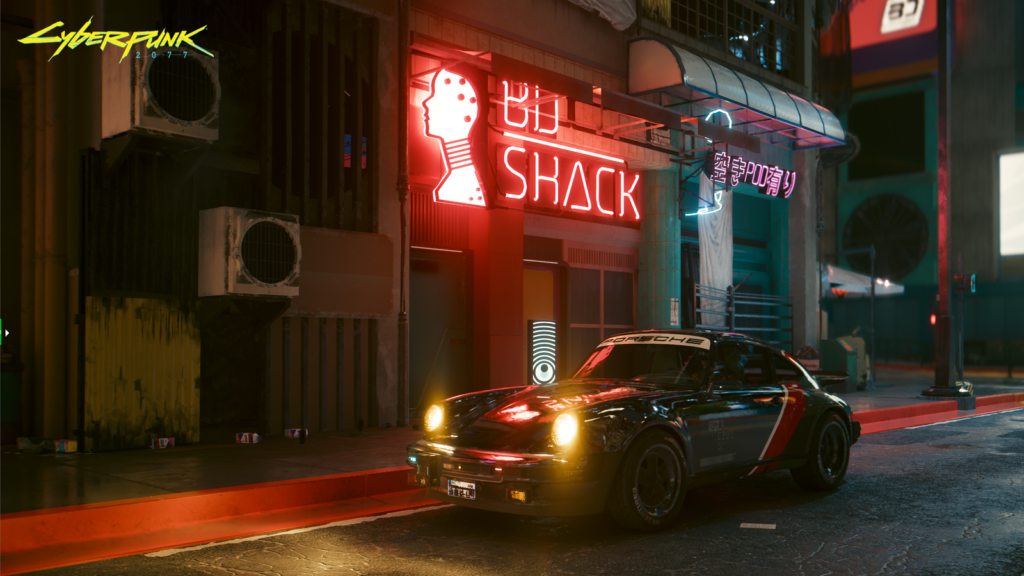
- Cyberpunk 2077 (High, no RT): 75–95 FPS
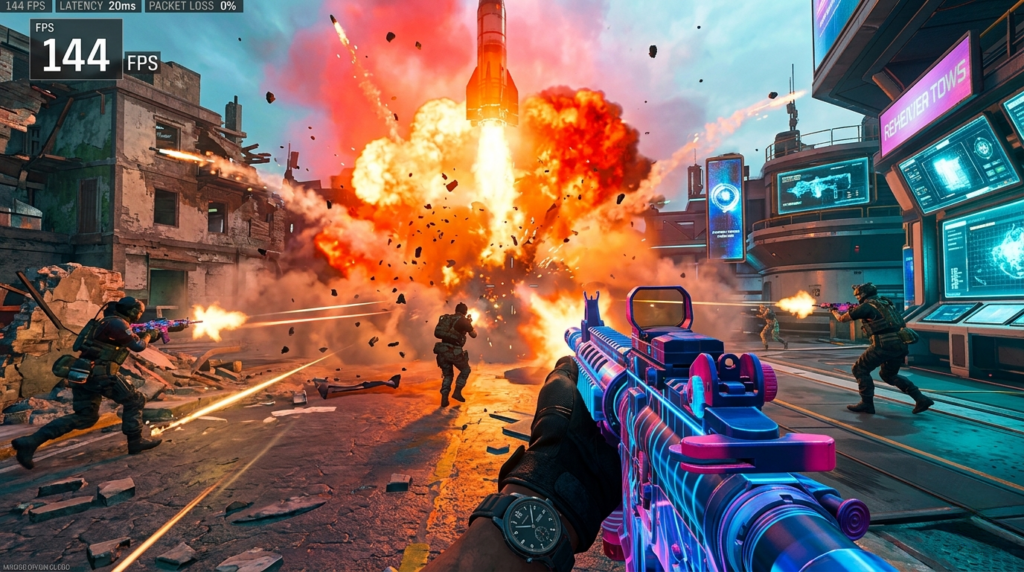
- Call of Duty Warzone (Medium): 130–160 FPS
Mid-Tier — RTX 5060 + Ryzen 7 9700X or Core i7-14700K, 32 GB DDR5-6000, 1440p
- Fortnite (High, DLSS Quality): 160–200 FPS
- Black Myth: Wukong (High, DLSS Performance): 80–100 FPS
- Apex Legends (High): 150–180 FPS
- Alan Wake 2 (High, DLSS Quality): 70–90 FPS
High-End Tier — RTX 5060 + Core i9-14900K or Ryzen 9 9950X, 32 GB DDR5-6400 CL30, 1440p
- All above titles gain 10–15% from the stronger CPU uncapping frame rate ceilings
- Path-traced titles hit the VRAM ceiling faster at 1440p ultra — expect dips below 60 FPS in memory-heavy scenes
Check your exact game’s FPS potential on your specific build at https://fpscalculator.net — it factors in your CPU, RAM speed, and resolution to give you a personalized estimate.
Step 1: Nvidia Driver and Control Panel Setup
The best settings for Nvidia RTX 5060 start outside the game. Getting the driver configuration right affects every title you play.
Driver version: Use Game Ready Driver 576.xx or newer (released March 2026). Avoid Day 0 drivers unless they patch a specific game you’re playing — they ship with less stability testing.
Nvidia Control Panel — key changes:
- Power Management Mode → Prefer Maximum Performance
- Low Latency Mode → Ultra (adds frames to the render queue before the GPU needs them, reducing input lag)
- Texture Filtering – Quality → High Performance
- Shader Cache Size → 10 GB (prevents stutter from recompilation mid-session)
- Vertical Sync → Off (let in-game or G-Sync handle this)
- OpenGL Rendering GPU → RTX 5060 (if you have integrated graphics on your CPU)
- Triple Buffering → Off (only useful with VSync on, adds latency otherwise)
G-Sync / FreeSync: If your monitor supports variable refresh rate, enable G-Sync in the Nvidia Control Panel and cap your in-game frame rate 3 FPS below your monitor’s refresh rate using RTSS or the in-game limiter. This keeps the GPU in the VRR window and eliminates tearing without the latency hit of traditional VSync.
Step 2: Windows and System Optimizations
These are the changes that most guides skip, and they matter more than bumping one in-game slider.
Windows power plan:
Open PowerShell as admin and run:
powershell -command “powercfg -setactive 8c5e7fda-e8bf-4a96-9a85-a6e23a8c635c”
This activates the High Performance plan. On Ryzen 9000-series CPUs, use AMD’s Ryzen Balanced plan instead — it handles boost clocks more intelligently than Windows High Performance on that architecture.
Hardware-Accelerated GPU Scheduling (HAGS): Keep this on for the RTX 5060. Blackwell’s HAGS implementation is mature and reduces CPU-to-GPU latency in CPU-bound scenarios. In earlier Nvidia generations, HAGS sometimes hurt performance — that’s no longer the case here.
Game Mode: Windows 11 → Settings → Gaming → Game Mode → On. This reserves CPU threads for the foreground game and suppresses Windows Update activity during sessions.
XMP/EXPO: Confirm in BIOS that your RAM is running at its rated speed. DDR5-4800 vs. DDR5-6000 is a 5–8% FPS difference in CPU-bound titles like Valorant and Fortnite. This single change is free and often untouched on prebuilts.
Resizable BAR: Should already be enabled on any RTX 50-series system, but verify in BIOS (often labeled SAM or ReBAR). It allows the CPU to access the full GPU VRAM directly and improves performance 5–12% in supported games.
Step 3: DLSS 4 and Frame Generation
The RTX 5060 supports DLSS 4 with Multi Frame Generation, which can double or triple your perceived frame rate in supported titles. This is where the best settings for Nvidia RTX 5060 diverge most sharply from older GPU playbooks.
DLSS Super Resolution modes — practical guide:
| Mode | Resolution Rendered | Use Case |
|---|---|---|
| Quality | ~77% native | Image-quality-sensitive single-player |
| Balanced | ~67% native | Best general-purpose option at 1440p |
| Performance | ~50% native | Competitive multiplayer at 1080p |
| Ultra Performance | ~33% native | Only if targeting 4K, avoid at 1080p |
Multi Frame Generation: In games like Cyberpunk 2077 2.2, Alan Wake 2, and Black Myth: Wukong, enable MFG in the DLSS settings menu. It generates 2–3 extra frames per rendered frame. Input latency increases slightly, so pair it with Nvidia Reflex (set to On + Boost) to claw that latency back. At 1440p with DLSS Balanced + MFG x2, expect Cyberpunk 2077 to jump from ~85 FPS to 160–180 FPS.
Reflex: Enable in every game that supports it. It restructures how the CPU submits work to the GPU to minimize the gap between your mouse movement and the frame reaching your display. In Valorant, it cuts system latency from ~15 ms to ~7 ms on this hardware.
Step 4: In-Game Settings That Move the Needle
Not all settings are equal. These have the highest FPS-to-quality trade-off on the RTX 5060:
Settings to Lower First
- Ray Tracing / Path Tracing — Biggest single performance cost. Disable in competitive titles. In single-player games, use DLSS MFG to compensate if you want the visual upgrade.
- Ambient Occlusion — Drop from Ultra to Medium or HBAO. Saves 5–10% with minimal visible difference.
- Shadows — Set to High, not Ultra. Ultra shadow distance taxes the GPU heavily for content at the edge of your FOV.
- Volumetric Fog / Clouds — High to Medium. Often costs 8–12 FPS in open-world titles.
- Anti-Aliasing — Disable TAA or MSAA entirely if using DLSS, which has its own temporal AA baked in. Running both doubles the blur.
Settings to Keep High
- Texture Quality — The RTX 5060’s 8 GB GDDR7 handles high textures at 1080p and 1440p without issue. Keep at High or Ultra.
- Anisotropic Filtering — Set to 16x in-game or force it via the Nvidia Control Panel. Near-zero performance cost, significant sharpness improvement on surfaces at oblique angles.
- Field of View — Personal preference, but wider FOV increases geometry load. If you’re near a performance target, dial it back slightly.
Step 5: Monitor Your Temps and Clocks
A GPU that’s hitting 85°C+ will throttle below its boost clocks. Use MSI Afterburner or GPU-Z to watch:
- GPU Temp: Should stay below 83°C under load. If not, repaste (new RTX 5060 Founders Edition cards rarely need this), clean dust filters, or improve case airflow.
- GPU Clock: The RTX 5060 boosts to ~2700–2800 MHz. If you’re seeing consistent clocks below 2500 MHz under load, thermal throttling or a power limit is the culprit.
- VRAM Usage: Watch for usage crossing 7.5 GB at your chosen resolution and settings. Above that, expect stuttering as assets are evicted from VRAM.
A conservative +100 MHz core offset and +500 MHz memory offset in Afterburner is safe on most RTX 5060 models and adds 3–6% to rasterization performance at no cost.
Quick-Reference Checklist
- [ ] Driver 576.xx or newer installed
- [ ] Control Panel: Max Performance power mode, Low Latency Ultra, VSync off
- [ ] XMP/EXPO enabled in BIOS
- [ ] Resizable BAR confirmed active
- [ ] HAGS enabled in Windows Display Settings
- [ ] DLSS 4 Super Resolution set to Balanced or Quality per game
- [ ] Nvidia Reflex enabled where available
- [ ] Shadows and volumetric fog dropped to High/Medium
- [ ] Textures and AF kept at Ultra/16x
- [ ] GPU temps under 83°C, clocks above 2500 MHz under load
Want a personalized FPS estimate for your exact build? Visit https://fpscalculator.net and enter your CPU, RAM, and resolution to see predicted frame rates across the most popular games in 2026.
The best settings for Nvidia RTX 5060 aren’t about finding one magic slider — they’re about stacking marginal gains across the driver, OS, upscaling, and in-game layers. Apply all five steps above and you’ll likely find 20–40% more FPS than a stock install of the same card, without spending a dollar on new hardware.