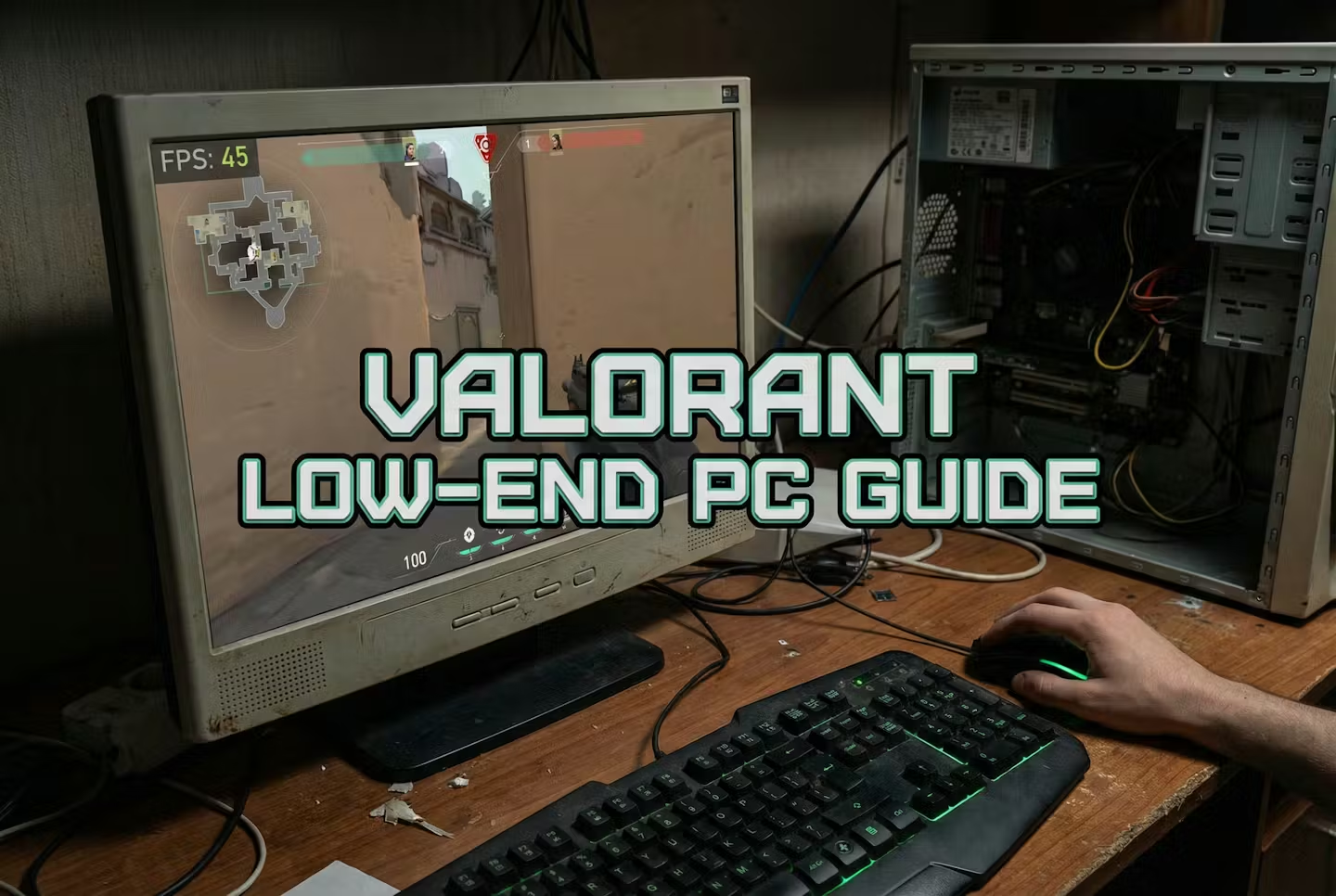

Quick Answer: To boost FPS in Valorant on a low-end PC, set resolution to 1280×720, enable Multithreaded Rendering, and put Material/Texture/Detail/UI Quality on Low with Anti-Aliasing off. Add the launch options “-high -d3d11 -allow_third_party_software” for CPU priority. Valorant is CPU-bound, so these tweaks matter more than any GPU upgrade.
Is your PC screaming in agony every time Jett dashes? Do you lose duels not because of your aim, but because your screen froze at the worst possible moment? We’ve all been there, choom. Trying to climb the ranks with a rig that belongs in a museum is a special kind of torture. But here’s the good news: Valorant is arguably the most optimized shooter on the market right now. With the right tweaks, even a verified “potato PC” can hit playable framerates.
In this Valorant low-end PC guide, we’re going to strip the game down to its essentials. We’ll bypass the fluff, dive into config files, and squeeze every last drop of performance out of your hardware. Let’s turn that slideshow into a highlight reel.
The Diagnosis: Why Is Your FPS Tanking?
Before we fix it, let’s understand why your PC is choking. Valorant is a CPU-bound game. This means it cares way more about your processor’s speed than your fancy graphics card. If you’re on an older dual-core laptop or an ancient office desktop, your CPU is likely the bottleneck.
-
VRAM Limits: If you have integrated graphics (Intel HD/UHD), you’re sharing system RAM with video memory. Running out of RAM causes massive stutters.
-
Thermal Throttling: Laptops especially love to slow down when they get hot to prevent melting.
-
HDD Speed: Still running the game off a spinning hard drive? That’s why your agent takes ten years to load into the map.
The Solutions: Step-by-Step FPS Boost
We are aiming for stability here. We want a consistent framerate, not a high peak number that drops to 0 when Viper ults.
1. The “Competitive Potato” In-Game Settings
Target: 720p – 1080p / Stable 60 FPS
Don’t just hit “Low” and pray. Set these manually for the best visibility-to-performance ratio:
-
Display Mode: Fullscreen (Strictly. Windowed mode adds input lag).
-
Resolution: 1080p is standard, but drop to 1280×720 if you are struggling for 60 FPS. It’s blurry, but fast.
-
Multithreaded Rendering: ON (Crucial! If you have this option, use it. It offloads work to other CPU cores).
-
Material / Texture / Detail / UI Quality: Low.
-
Vignette: Off (Useless visual clutter).
-
VSync: Off (This adds input lag. Never use it unless screen tearing is unbearable).
-
Anti-Aliasing: None or MSAA 2x. (FXAA blurs edges too much).
-
Anisotropic Filtering: 1x.
-
Bloom / Distortion / Cast Shadows: Off.
2. The Config File Hack (Deep Optimization)
Sometimes the in-game menu doesn’t go low enough. We need to edit the GameUserSettings.ini file.
-
Press
Win + R, type%localappdata%and hit Enter. -
Navigate to:
\VALORANT\Saved\Config\YourUserID\Windows\. -
Open
GameUserSettings.iniwith Notepad. -
Find
[ScalabilityGroups]and change these values:Ini, TOML
sg.ResolutionQuality=100.000000 (Lower to 80 or 90 for a render scale boost without changing UI res) sg.ViewDistanceQuality=0 sg.AntiAliasingQuality=0 sg.ShadowQuality=0 sg.PostProcessQuality=0 sg.TextureQuality=0 sg.EffectsQuality=0 sg.FoliageQuality=0 -
Save the file, right-click it, select Properties, and check Read-only. This stops the game from resetting your tweaks.
3. Essential Launch Options
Force the game to prioritize your hardware correctly using Riot Client launch arguments.
-
Open Riot Client, click your profile icon -> Settings.
-
Select Valorant.
-
In “Additional Command Line Arguments,” paste this:
-high -d3d11 -allow_third_party_software
(Note: -high forces CPU priority. -d3d11 ensures you aren’t accidentally forcing newer, heavier APIs).
4. Device-Specific Tuning
For the Integrated Graphics Warriors (Intel HD 620 / UHD 630):
-
Resolution: 1280×720 is your best friend.
-
Laptop Power: You must play plugged into the wall. Battery mode throttles performance by 50%.
-
Thermals: Prop the back of your laptop up with a book (not covering the vents!) to increase airflow.
For the Budget Kings (GTX 1050 Ti / GTX 1650):
-
Target: 1080p / 120+ FPS.
-
Nvidia Reflex: Set to On + Boost. This keeps your GPU clock speeds high, preventing micro-stutters.
-
Textures: You can actually get away with Medium textures on these cards without losing FPS, keeping the skins looking decent.
While tweaking device-specific settings, make sure your OS is also fully dialed in, our best Windows 11 settings for gaming guide covers every system-level tweak, power plans, HAGS, background processes, that boosts FPS across all games.
Check Your Hardware Capability
Still not sure if your rig can handle the heat? Don’t guess.
Check Your FPS Estimation Here > Use our Main Calculator Tool to see exactly how your CPU and GPU combo stacks up against the current patch.
Verdict: Frame Wins Games
You don’t need an RTX 5090 to click heads in Valorant. You need stability. By lowering your resolution, gutting the visual effects, and forcing high CPU priority, you can turn a low-end PC into a competitive machine.
The goal isn’t to make the game look pretty; it’s to make the game feel responsive. If you follow this Valorant low-end PC guide, you’ll eliminate the hardware excuse. The rest is up to your aim. Good luck out there!