
Season 4 dropped for Black Ops 6 on May 1, 2026, and with it came a wave of performance complaints across Reddit, Discord, and the official Activision forums. New maps, updated shaders, and additional post-processing effects have pushed frame rates down for players on both budget and mid-range rigs. If you’re looking to fix FPS drops in Black Ops 6 Season 4, you’re not alone — stuttering in the new Verdansk-adjacent playlist or hitching during killstreaks is a widespread issue, and the solution is almost always a combination of in-game settings and system-level tweaks.
This guide covers every meaningful change you can make today.
How to Fix FPS Drops in Black Ops 6 Season 4: Root Causes Explained
Black Ops 6 uses a dynamic streaming system that pre-compiles shaders on first load. Every major content update resets part of that cache. Season 4 introduced three new multiplayer maps, two Zombies arenas, and an overhauled particle system for the new scorestreak effects — all of which force a fresh shader compilation pass.
The result: stutters that feel like frame drops even when your average FPS is healthy. A 1% low of 40 FPS on a machine averaging 120 FPS is functionally unplayable in competitive lobbies.
Two other culprits specific to Season 4:
- Texture streaming budget was quietly increased in the patch, pulling more VRAM than before
- DLSS/FSR integration received a backend update that breaks saved presets on some Nvidia RTX 30-series cards
Step 1: Force a Clean Shader Precompilation
Before touching any settings, delete the cached shaders and let the game rebuild them cleanly.
- Navigate to
%LOCALAPPDATA%\Call of Duty\players - Delete the
shadercachefolder entirely - Launch Black Ops 6 and sit through the “Optimizing Shaders” screen — do not skip or alt-tab
- On an RTX 4070, this takes roughly 6–8 minutes; on a GTX 1660 Super, expect 15–20 minutes
This single step resolves micro-stutter for the majority of players reporting fps drops after a Black Ops 6 Season 4 update.
Step 2: In-Game Graphics Settings
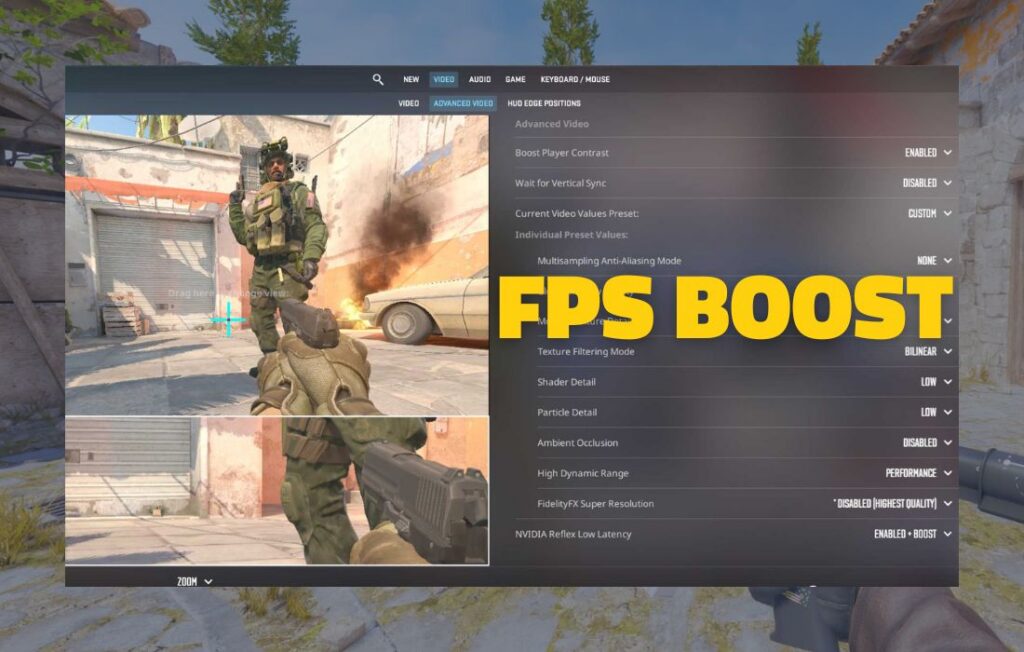
Open Settings → Graphics and apply the following values based on your GPU tier.
Display Settings
| Setting | Recommended Value |
|---|---|
| Display Mode | Fullscreen Exclusive |
| Refresh Rate | Match your monitor’s native rate |
| Sync Every Frame (V-Sync) | Disabled |
| NVIDIA Reflex | Enabled + Boost (Nvidia only) |
Always use Fullscreen Exclusive, not Borderless Windowed. Borderless adds a frame of latency and prevents the GPU from fully prioritizing the game’s render pipeline.
Quality Settings (1080p Mid-Range Tier)
| Setting | Value |
|---|---|
| Render Resolution | 100% |
| Upscaling / Sharpening | DLSS Quality or FSR 2 Quality |
| Anti-Aliasing | DLSS (if Nvidia) / FSR (if AMD) |
| Texture Resolution | High |
| Texture Filter Anisotropic | Normal |
| Shadow Map Resolution | Medium |
| Shadow Cascades | Medium |
| Particle Quality | Low |
| Bullet Impacts & Sprays | Disabled |
| Shader Quality | Medium |
| On-Demand Texture Streaming | Disabled |
| Streaming Quality | Low |
Key fix for Season 4 specifically: Particle Quality was set to High by default after the patch reset graphics presets for many users. Drop this to Low immediately — the new scorestreak effects are the single biggest frame-time spike in Season 4 content.
Field of View
Set FOV to 100–105 for competitive play. Higher FOV (above 110) increases the render load by approximately 8–12% depending on your CPU and scene complexity.
Step 3: VRAM Management
Season 4’s texture streaming update means the game now requests up to 500MB more VRAM than Season 3 under the same settings profile.
Check your VRAM usage in-game via the Performance Overlay (Settings → Interface → Telemetry). If you’re hitting 95%+ VRAM usage:
- Drop Texture Resolution from High to Medium
- Set On-Demand Texture Streaming to Disabled (paradoxically, disabling this prevents the game from aggressively pulling textures mid-match)
- Lower Shadow Map Resolution to Low
For 6GB VRAM cards (RTX 3060, RX 6600 XT): run Texture Resolution at Medium and skip DLSS Quality in favor of DLSS Balanced to reduce the base render load.
Step 4: Windows and Driver Configuration
Nvidia Driver Settings (RTX Users)
Open Nvidia Control Panel → Manage 3D Settings → Program Settings → select cod.exe:
- Power Management Mode: Prefer Maximum Performance
- Texture Filtering – Quality: High Performance
- Threaded Optimization: On
- Low Latency Mode: Ultra (only if you have a stable 60+ FPS floor)
Update to driver 572.83 or later. The DLSS backend fix relevant to Season 4’s upscaler regression shipped in this build.
AMD Driver Settings (RX Users)
In Radeon Software → Gaming → Black Ops 6:
- Radeon Anti-Lag: Enabled
- Radeon Boost: Disabled (causes blurring during movement)
- Image Sharpening: 80%
AMD users should be on Adrenalin 25.4.1 or newer.
Windows Power Plan
- Open Control Panel → Power Options
- Select High Performance or, on Ryzen systems, AMD Ryzen High Performance
- In Advanced Settings, set Processor power management minimum state to 100%
This prevents the CPU from downclocking during brief scene transitions, which shows up as frame spikes in the kill feed.
Hardware Tier: Realistic FPS Expectations in Season 4
These numbers are based on 1080p resolution, the settings profile from Step 2, and standard 6v6 multiplayer (not Warzone integration modes).
Budget Tier
- GTX 1660 Super / RX 5600 XT + Ryzen 5 3600
- Expected FPS: 55–80 FPS (DLSS/FSR Performance mode recommended)
- Bottleneck: VRAM ceiling at 6GB; use Medium textures and disable streaming
Mid-Range Tier
- RTX 3070 / RX 6700 XT + Ryzen 5 5600X or Intel i5-12600K
- Expected FPS: 100–145 FPS (DLSS Quality or FSR Quality)
- Notes: Primary target audience for this guide; all settings in Step 2 apply directly
High-End Tier
- RTX 4080 Super / RX 7900 XTX + Ryzen 7 7800X3D or i9-14900K
- Expected FPS: 160–240+ FPS (Native or DLSS Quality at 1440p)
- Notes: Season 4 CPU thread contention may cap 1% lows around 120 FPS even on high-end CPUs; use the process priority fix below
Step 5: CPU Process Priority and Core Parking
For high-end rigs where the GPU isn’t the bottleneck, CPU thread scheduling becomes the limiting factor — especially with Season 4’s updated AI scripting for Zombies enemies.
Disable Core Parking:
- Download Quick CPU (free utility)
- Set Core Parking to 0% (all cores active)
- Set CPU Frequency Scaling to 100%
Set Game Process Priority:
In Task Manager, while in-game, right-click cod.exe → Set Priority → Above Normal. Do not set to Realtime — this can cause system instability.
Step 6: Network-Related Frame Spikes
Some “fps drops” in Black Ops 6 Season 4 are actually server hitches disguised as frame drops. The in-game ping graph won’t show them, but they manifest identically to a GPU bottleneck.
Enable the full Performance Overlay (Settings → Interface → Telemetry → All) and watch the Server Frame Time counter. If it spikes above 50ms independently of your GPU frame time, the issue is server-side and no client setting will fix it.
Peak hour lobbies (7–10 PM local time) consistently show worse server performance than off-peak. If you’re testing fixes, do it during off-peak hours to isolate client-side variables.
Not sure if your hardware can hit 144 FPS in Black Ops 6? Use the Call of Duty Modern Warfare 3 FPS Calculator at fpscalculator.net to get a personalized estimate based on your exact CPU, GPU, and RAM before changing any settings.
Quick Checklist Before You Play
- [ ] Deleted shader cache and recompiled
- [ ] Particle Quality set to Low
- [ ] On-Demand Texture Streaming disabled
- [ ] Nvidia driver 572.83+ / AMD Adrenalin 25.4.1+ installed
- [ ] Windows Power Plan set to High Performance
- [ ] V-Sync disabled, NVIDIA Reflex enabled
- [ ] Core parking disabled via Quick CPU (high-end rigs)
The most common cause of FPS drops in Black Ops 6 Season 4 is the combination of reset particle settings and the stale shader cache from the content update. To fix FPS drops in Black Ops 6 Season 4, handle those two items first — most players will see an immediate 15–30 FPS improvement before touching anything else.