
Yo, choom. Did the latest patch turn your buttery-smooth aim into a stuttery mess? One minute you’re holding an angle on Ascent with a stable 400+ FPS, and the next, you’re watching a slideshow while Jett dashes past you. If you’re suffering from a massive Valorant FPS drop after update, you aren’t alone—and it’s seriously frustrating, especially when you’re rocking a beast of a PC.
It doesn’t matter if you have an RTX 50-series or a top-tier Ryzen CPU; Valorant’s recent engine tweaks (especially the shift toward UE5 elements) have been punishing even the most expensive rigs. But don’t smash your keyboard just yet. We’re going to bypass the “potato PC” advice and get deep into the technical fixes to restore your competitive edge.
Let’s get those frames back.
The Diagnosis: Why Is My $3,000 PC Lagging?
Before we nuke your drivers, let’s understand why this is happening. You aren’t playing on a toaster, so why does it feel like one?
-
Shader Compilation Stutter: With the recent engine overhauls, Valorant often rebuilds shader caches after an update. If this gets corrupted or interrupted, your GPU hangs every time a new ability is used.
-
Vanguard “Spaghetti” Usage: Riot Vanguard is necessary, but it’s notorious for eating CPU cycles. Recent patches have caused conflicts with Windows 11 24H2+ security features, causing micro-stutters.
-
The “Fullscreen” Lie: Sometimes, an update silently reverts your display mode to “Windowed Fullscreen,” which introduces input lag and tanks FPS on high-refresh-rate monitors.
-
In some cases, players mistake screen tearing for FPS drops because both issues can make gameplay feel choppy. If you notice horizontal image tearing or inconsistent frame delivery, check our guide on fixing screen tearing with V-Sync, G-Sync, and FreeSync.
-
The Solutions: Restoring High-End Performance
We aren’t just turning settings to “Low” here. These are targeted fixes for enthusiasts who expect 300+ FPS constant.
1. The “Clean Slate” Shader Fix (Crucial for Stutters)
If your Valorant FPS drop after update feels more like a “hitch” or “freeze” when shooting, your DirectX shader cache is likely the culprit.
-
Close Valorant and Riot Client.
-
Open Disk Cleanup in Windows.
-
Select your
C:drive (or wherever your OS is). -
Check DirectX Shader Cache.
-
Hit OK and Delete Files.
-
Pro Tip: Reboot your PC immediately. The next time you launch Valorant, sit in the “The Range” for 5 minutes to let assets rebuild smoothly.
2. Force High-Priority CPU Allocation
Windows loves to deprioritize games when background tasks (like Discord or Chrome) get hungry. Let’s force the OS to respect your rank.
-
Target: 1080p / Uncapped FPS
-
Download Process Lasso (or use Task Manager if you prefer manual labor).
-
Launch Valorant.
-
Find
VALORANT-Win64-Shipping.exe. -
Right-click -> CPU Priority -> High (Never choose “Real-time,” that breaks audio).
-
Right-click -> CPU Affinity -> Ensure all “Performance Cores” (P-Cores) are checked. If you’re on Intel 13th/14th/15th gen, unchecking “E-Cores” can sometimes stabilize the 1% lows.
3. Nuke and Reinstall Vanguard
Corrupted anti-cheat files are the silent killer of FPS.
-
Go to your System Tray (bottom right), right-click the Vanguard icon, and select Exit Vanguard.
-
Go to Add or Remove Programs and uninstall “Riot Vanguard” (Not Valorant).
-
Restart your PC.
-
Launch the Riot Client; it will force a fresh, clean install of the anti-cheat.
4. BIOS & XMP Check (The “I Forgot” Fix)
Updates can’t change your BIOS, but if your BIOS reset recently (or you never checked), you might be crippling your CPU.
-
Check This: Download CPU-Z. Check the Memory tab.
-
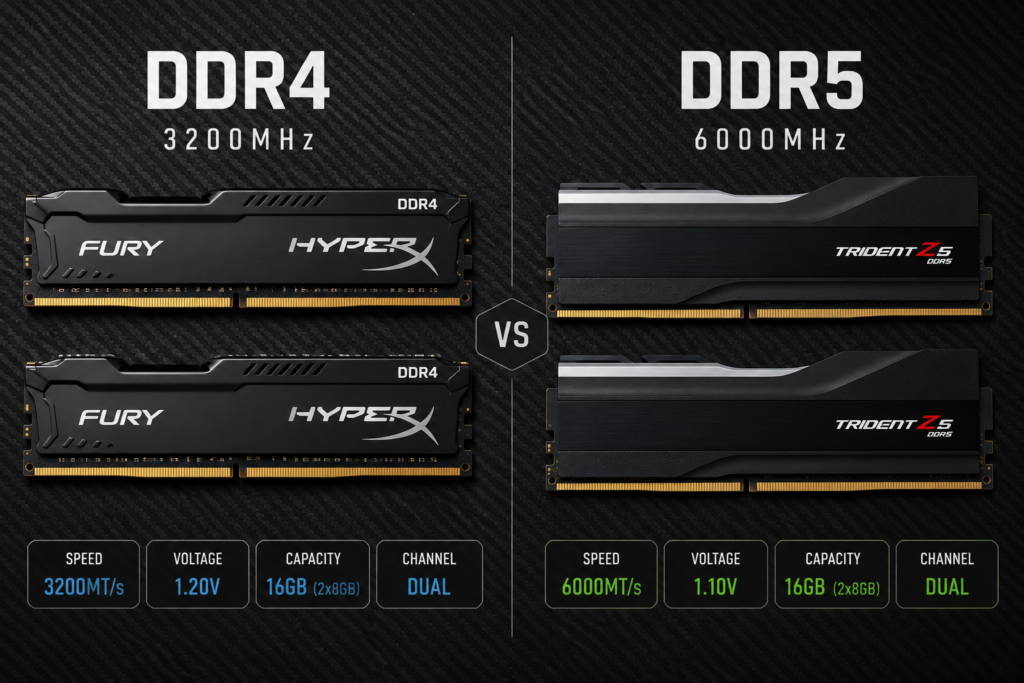
Is your DRAM Frequency half of your rated speed (e.g., 2400MHz instead of 4800+)?
-
The Fix: Reboot into BIOS. Enable XMP (Intel) or DOCP/EXPO (AMD). Valorant is incredibly CPU/RAM bound; slow RAM = low FPS.
Similar optimization principles apply to other esports titles. If you’re trying to maximize framerate in Riot’s MOBA, check our guide to the best League of Legends settings for FPS.
Internal System Check
Is your rig actually performing where it should be? Don’t guess.
Check your exact performance score here: Valorant FPS Calculator
Summary: The Verdict
A Valorant FPS drop after update is usually software conflict, not hardware failure. By clearing your shader cache, forcing CPU priority, and ensuring Vanguard is clean, you should return to that buttery smooth 300+ FPS sweet spot.
Don’t let a bad patch ruin your RR. Tweak these settings, warm up in the Range, and go click some heads, choom.