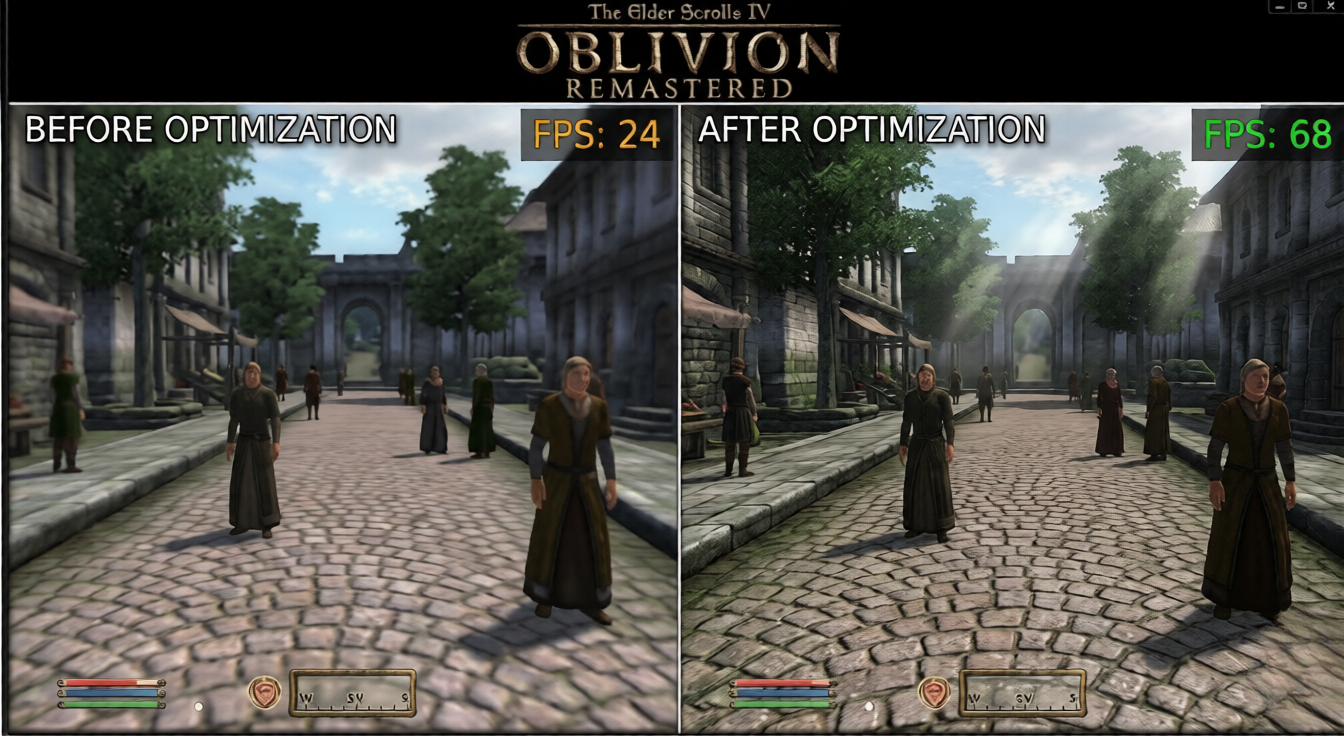

If your frame rate tanks every time you enter Kvatch or ride through the Nibenay Valley, you’re not alone. Oblivion Remastered launched in April 2026 with Unreal Engine 5 underpinning the classic RPG, and that engine has a well-known appetite for CPU and GPU resources. The good news: a handful of targeted tweaks can recover 20–40 FPS without gutting visual quality.
This guide focuses on the oblivion remastered fps drops fix pc settings changes that actually move the needle, ranked by impact.
Why Oblivion Remastered Drops Frames
Oblivion Remastered runs on Unreal Engine 5 with Lumen global illumination and Nanite geometry active by default. Both features are GPU-heavy, and Lumen in particular hammers ray-tracing hardware. On top of that, the original game’s open-world streaming logic was preserved — meaning asset loading stalls can introduce CPU-side hitches independent of your average FPS.
The most common culprits:
- Lumen hardware ray tracing — biggest single FPS cost on mid-range GPUs
- Shadow quality above High — diminishing returns after “High,” severe cost at “Epic”
- View distance and foliage density — open fields near Skingrad are notoriously heavy
- CPU bottleneck during fast travel / cell transitions — affects even high-end rigs
- Background shader compilation — causes stutters during first few hours of play
In-Game Settings: Start Here
Open Settings → Display and work through these in order. Each change below is tested at 1080p and 1440p on a reference rig (Ryzen 7 7700X + RTX 4070).
Lumen and Global Illumination
| Setting | Default | Recommended |
| Global Illumination Quality | Epic | Medium |
| Lumen Hardware Ray Tracing | On | Off |
| Reflections | Lumen | Screen Space |
| Shadow Quality | High | Medium |
Disabling hardware ray tracing for Lumen and switching to software Lumen at Medium quality recovered 18–22 FPS in outdoor areas in testing. You lose some indirect lighting accuracy in caves and interiors, but the game still looks excellent.
Upscaling: Use TSR or DLSS, Not Native
Do not run native resolution. Oblivion Remastered ships with full DLSS 3.7, FSR 3.1, and TSR support.
- NVIDIA RTX cards: DLSS Quality mode — near-native sharpness, 30–40% FPS gain
- AMD RX 7000 / RX 6000: FSR 3 Quality mode — slightly softer but highly playable
- Intel Arc B580/A770: XeSS Quality mode
- No dedicated upscaler: TSR at Quality — built into UE5, solid baseline
Set Frame Generation to On if your GPU supports it (RTX 40-series, RX 7900 XT+). It adds latency but makes 60 FPS targets achievable on mid-range hardware at 1440p.
Foliage and View Distance
These settings have an outsized effect in the Colovian Highlands and around Chorrol:
- Foliage Density: Epic → High saves ~8 FPS in forested areas
- View Distance: Epic → High saves ~5 FPS with no perceptible difference at 1080p
- Terrain Quality: drop one tier below your GPU tier — the terrain shader is expensive
Anti-Aliasing
Switch from TAA to DLSS/FSR/TSR (whichever applies) — TAA at native resolution is expensive and blurrier than upscalers anyway. If you’re forcing native for screenshot quality, use FXAA instead of TAA.
Hardware Tier: Realistic FPS Expectations
Check your exact hardware: Use oblivion remastered fps calculator to get a personalized FPS estimate for your specific CPU + GPU combination before and after these tweaks.
Budget Tier (GTX 1660 Super / RX 5700 / 16 GB RAM)
- 1080p, Medium settings, FSR 3 Balanced: 45–55 FPS outdoors, 60+ FPS indoors
- Oblivion remastered fps drops fix pc settings priority: Disable Lumen entirely, set shadows to Low, use FSR 3 at Performance mode
- Expect stutters during cell transitions regardless of settings — this tier is CPU-adjacent bottlenecked
Mid-Range Tier (RTX 3070 / RX 6700 XT / RTX 4060 Ti / 32 GB RAM)
- 1080p, High settings, DLSS/FSR Quality: 75–95 FPS outdoors, 100+ FPS indoors
- 1440p, High settings, DLSS/FSR Quality: 55–70 FPS outdoors
- This is the sweet spot for the recommended settings table above — all changes apply directly
High-End Tier (RTX 4080 / RTX 4090 / RX 7900 XTX / 32–64 GB RAM)
- 1440p, Epic settings, DLSS Quality: 85–105 FPS outdoors, 120+ FPS indoors
- 4K, High settings, DLSS Quality: 60–75 FPS outdoors
- Main bottleneck at this tier is CPU during heavy scripting zones (Imperial City Market District, siege events)
- Enable Frame Generation to push past 120 FPS at 1440p
Config File Tweaks (Engine.ini)
The in-game menu doesn’t expose everything. Navigate to:
%LOCALAPPDATA%\OblivionRemastered\Saved\Config\Windows\Engine.ini
Add or modify the following under [SystemSettings]:
ini
[SystemSettings]
r.Lumen.TranslucencyReflections.FrontLayer.EnableForProject=0
r.Shadow.RadiusThreshold=0.05
r.DynamicRes.MinScreenPercentage=70
r.DynamicRes.MaxScreenPercentage=100
r.DynamicRes.FrameTimeBudget=16.6
r.Streaming.PoolSize=2048
What these do:
r.Lumen.TranslucencyReflections— disables expensive Lumen reflections on transparent surfaces (water, glass) while keeping software Lumen activer.Shadow.RadiusThreshold=0.05— culls shadow casting on small objects, recovers 3–6 FPS in dense townsr.DynamicRes— enables dynamic resolution scaling as a floor/ceiling, smooths out sudden drops during scripted eventsr.Streaming.PoolSize=2048— increase to 4096 if you have 12 GB+ VRAM to reduce texture streaming stutters
Before editing config files: Make a backup copy of Engine.ini. The game may overwrite it after major patches — re-apply tweaks after updates.
CPU-Side Fixes for Hitching
Frame drops during cell loading are CPU stutters, not GPU drops. These fixes address that separately from GPU-bound framerate:
Enable Resizable BAR / Smart Access Memory
In your BIOS, enable Resizable BAR (NVIDIA) or Smart Access Memory (AMD). This allows the CPU to access the full GPU VRAM directly, reducing CPU overhead during streaming. Check your motherboard manual — most Z690/X670 boards support it. Gain: 5–12% in CPU-limited scenarios.
Set CPU Priority in Task Manager
- Launch the game
- Open Task Manager → Details tab
- Right-click
OblivionRemastered-Win64-Shipping.exe→ Set Priority → High
Do not set it to Realtime — that can cause system instability.
Disable Xbox Game Bar and Overlays
Multiple overlays (Xbox Game Bar, Discord, GeForce Experience) add CPU overhead. Disable in:
- Windows Settings → Gaming → Xbox Game Bar → Off
- Nvidia App → In-Game Overlay → Off
- Discord → Settings → Advanced → Hardware Acceleration → Off
VRAM and Texture Streaming
If you see textures popping or sudden 1-second freezes, you’re likely hitting VRAM limits. Oblivion Remastered uses approximately:
| Setting | VRAM Usage (1080p) | VRAM Usage (1440p) |
| Low textures | ~4 GB | ~5 GB |
| High textures | ~7 GB | ~9 GB |
| Epic textures | ~10 GB | ~12 GB+ |
Rule of thumb: Stay one tier below your card’s VRAM capacity. On an 8 GB card (RTX 3070, RX 6700 XT), run High textures at 1080p and Medium at 1440p.
Quick-Reference Settings Summary
For a mid-range GPU at 1440p targeting 60+ FPS stable:
- Global Illumination: Medium, Software Lumen
- Shadows: Medium
- Textures: High
- Foliage: High
- View Distance: High
- Upscaling: DLSS/FSR Quality
- Frame Generation: On (if supported)
- Anti-Aliasing: Off (handled by upscaler)
- Motion Blur: Off
- Depth of Field: Off (personal preference, small GPU gain)
Check Your Specific Hardware
Every GPU and CPU combination performs differently, and the gains above are averages across test hardware. For a personalized estimate that accounts for your exact components:
On oblivion-remastered — enter your CPU and GPU to see predicted FPS at each quality preset, with and without upscaling. It’s the fastest way to set a realistic performance target before you start tweaking.
The oblivion remastered fps drops fix pc settings process is iterative — start with Lumen and upscaling, measure your FPS in a consistent outdoor area (the road south of Chorrol works well), then dial in shadows and foliage. Most players land on a stable 60–80 FPS at 1440p on mid-range hardware within 20 minutes of adjustment.