
Fortnite Settings for Low-End PC: Stop the Lag and Start Winning
Let’s be real, choom: nothing kills a vibe faster than dropping into Mega City and watching your frame rate tank harder than a loot shark in a dry lake. If you’re struggling with stutters, you need the right Fortnite competitive settings for low-end PC to keep your gameplay smooth and your 90s crisp.
Whether you’re rocking an old office laptop or a dedicated potato PC, you don’t need a $3,000 rig to secure a Victory Royale. You just need to stop letting your hardware work against you.
The Diagnosis: Why Your FPS is Bottoming Out
If your game feels like a slideshow, you’re likely hitting a bottleneck. Most low-end systems struggle with three main things in Fortnite:
-
VRAM Limits: Your GPU can’t handle the high-res textures Chapter 6 and beyond throw at it.
-
CPU Overhead: Background apps are eating up cycles that should be going to the game.
-
HDD Speed: If you aren’t on an SSD, your PC is gasping for air while trying to load assets on the fly.
The Ultimate Fortnite Competitive Settings for Low-End PC
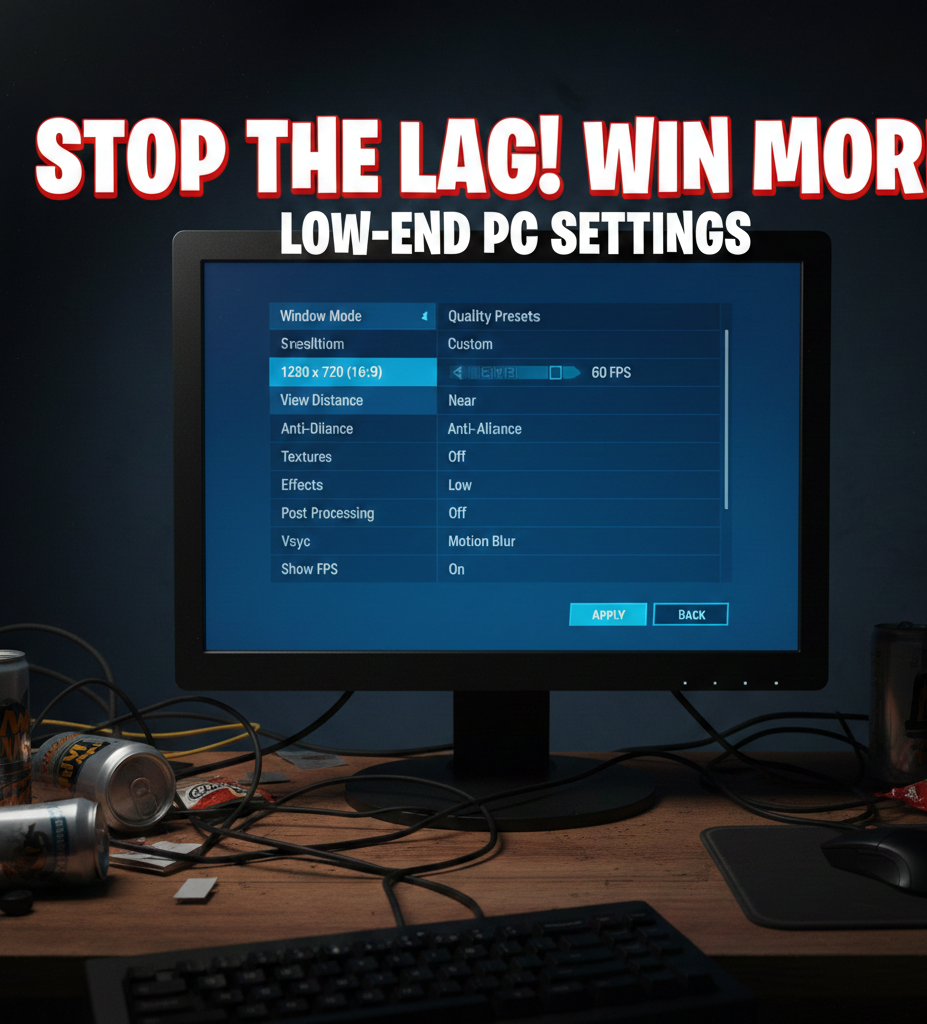
To get that competitive edge, we need to strip away the “pretty” and focus on the “fast.” Here is the go-to setup for maximum frames.
Display Settings (The Basics)
-
Window Mode: Fullscreen (This is non-negotiable for the lowest input lag).
-
Resolution: 1920×1080 (Or drop to 1600×900 if you’re really struggling).
-
Frame Rate Limit: Set this to match your monitor’s refresh rate (e.g., 60Hz or 144Hz).
Graphics Quality (The Competitive Core)
-
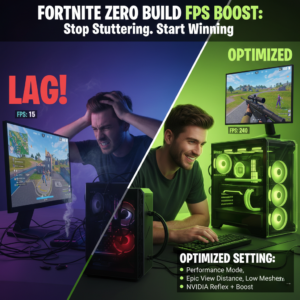
Rendering Mode: Performance – Lower Graphical Fidelity. This is the “nuclear option” that turns Fortnite into a high-performance machine.
-
3D Resolution: 100% (Drop to 75% if you need an emergency boost).
-
View Distance: Medium (Near is better for FPS, but Medium helps you spot llamas and loot).
-
Textures: Low.
-
Meshes: Low (Mobile-style builds are easier on the GPU).
Target Performance: 1080p / 60+ FPS on most integrated graphics.
Specific Hardware Fixes: GTX 1650 & Steam Deck
If you’re on specific budget hardware, “Low” isn’t always the only answer.
GTX 1650 / Low-Tier GPU
If you have a dedicated card like the GTX 1650, you can actually use NVIDIA Reflex Low Latency set to On + Boost. This keeps your GPU clocks high and reduces the delay between your mouse click and your shot.
Steam Deck & Handhelds
For handheld warriors, set your TSR (Temporal Super Resolution) to “Performance.” This allows the game to render at a lower internal resolution while upscaling it to keep the UI sharp on that small screen.
Pro-Level PC Optimizations
Beyond the in-game menu, your Windows settings might be sabotaging your Fortnite competitive settings for low-end PC.
-
Disable High-Res Textures: In the Epic Games Launcher, click the three dots on Fortnite > Options > Uncheck “High Resolution Textures.” This saves about 15GB of space and massive VRAM.
-
Power Plan: Set your Windows Power Plan to “Ultimate Performance” or “High Performance.”
-
Game Mode: Keep Windows Game Mode ON—it actually helps prioritize Fortnite in 2026.
See How Your Rig Ranks
Think your hardware is the problem? Before you go buying a new GPU, check our Main Calculator Tool to see exactly what kind of performance you should be getting.