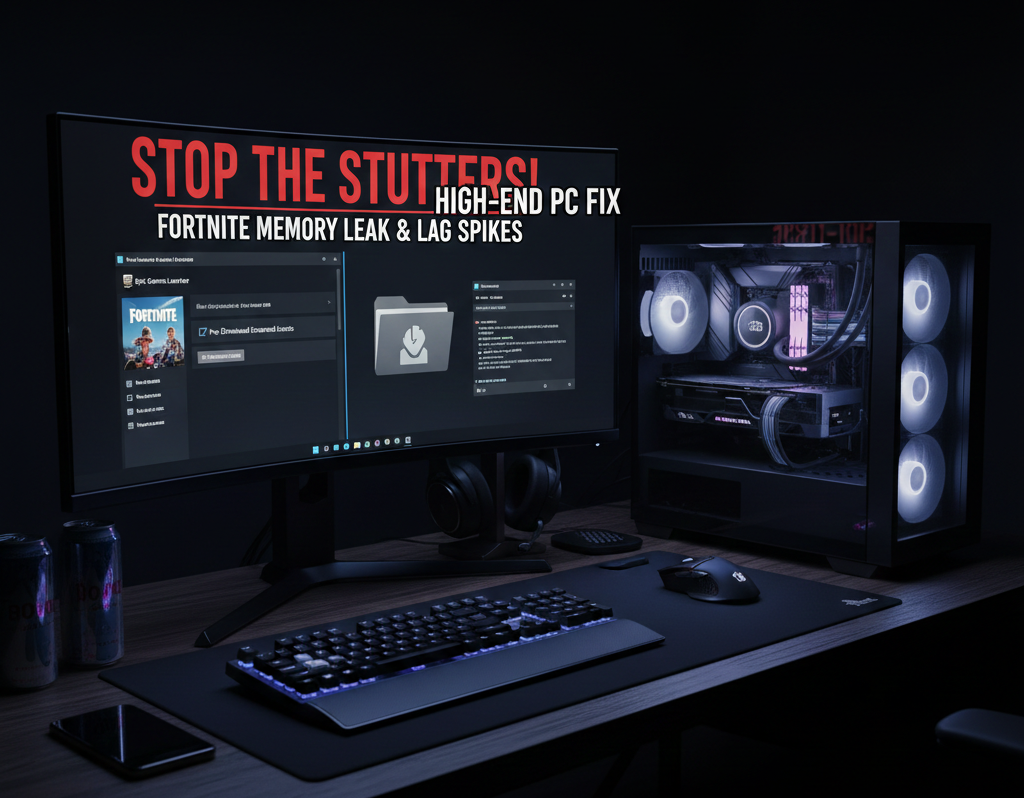

Yo, choom. Are you rocking a beastly rig with an RTX 50-series or a top-tier Ryzen chip, but Fortnite still feels like it’s running on a potato PC after an hour of play? You start at a crisp 400 FPS, but three matches later, you’re hitching in every build fight. If your frames are decaying over time, you’re likely dealing with a classic Fortnite memory leak.
Even in 2026, Unreal Engine 5 can occasionally “forget” to clear out old assets from your RAM and VRAM. This leads to a massive bottleneck where your high-end hardware is literally waiting on clogged memory to catch up. Don’t worry—you don’t need a degree in computer science to fix this. Let’s get your performance back to competitive standards.
The Diagnosis: Why High-End Rigs Leak Memory
It feels counter-intuitive, but the most powerful PCs are often the most susceptible to a memory leak in Fortnite. Here’s why:
-
VRAM Over-Allocation: High-end GPUs have massive pools of memory, but Fortnite’s “On-Demand Texture Streaming” can get greedy, filling up your VRAM and failing to dump old data.
-
Epic Web Helper Bloat: The launcher in the background often eats more RAM than the game itself due to a known Chromium-based leak.
-
Standby List Clogging: Windows 11 sometimes fails to clear “Standby” memory, leaving your actual available RAM at nearly zero even if you have 32GB+ installed.
The Solutions: Your Fortnite Memory Leak Fix
We aren’t just turning settings to “Low.” These are targeted stability fixes for enthusiasts who want to maintain high refresh rates without the late-game stutters.
1. Disable On-Demand Texture Streaming
This is the #1 Fortnite memory leak fix for 2026. This feature downloads high-res textures while you play, often failing to clear the cache properly.
-
Target: 1440p / 240+ FPS
-
Open Settings $\rightarrow$ Graphics.
-
Scroll to On-Demand Texture Streaming and turn it OFF.
-
Pro Tip: Click the “Auto-Download High Resolution Textures” box and ensure it is unchecked in the Epic Games Launcher options for Fortnite as well.
2. Flush the Epic Games Launcher Cache
If the launcher is “leaking,” the game suffers. If your RAM usage is creeping up while the launcher is open, try this:
-
Close Fortnite and the Epic Games Launcher completely.
-
Press
Win + R, type%localappdata%, and hit Enter. -
Navigate to
EpicGamesLauncher$\rightarrow$Saved. -
Delete the webcache and webcache_4430 folders.
-
Relaunch and feel the difference.
3. The “EmptyStandbyList” Trick
For enthusiasts with 32GB or 64GB of RAM, Windows can still be a bottleneck. Use a tool like Intelligent Standby List Cleaner (ISLC) to automatically purge your standby memory when it hits a certain threshold. Set it to trigger when your “Free Memory” is lower than half your total RAM.
Technical Settings for Specific Hardware
If you are using specific gear, try these “High-End” tweaks:
-
NVIDIA RTX 40/50 Series: Ensure Reflex Low Latency is set to On + Boost. This forces the GPU to maintain high clock speeds, which can sometimes “punch through” minor memory hitches.
-
AMD Ryzen Users: Ensure SMT (Simultaneous Multithreading) is set to Auto or On in BIOS. Fortnite’s UE5 engine is highly threaded, and memory management improves when the CPU isn’t struggling to assign tasks.
Internal Performance Check
Don’t just take my word for it—see where your rig should actually be performing.
Check your expected frames here: Fortnite FPS Calculator
and also if you play Rust you can check FPS drops in Rust