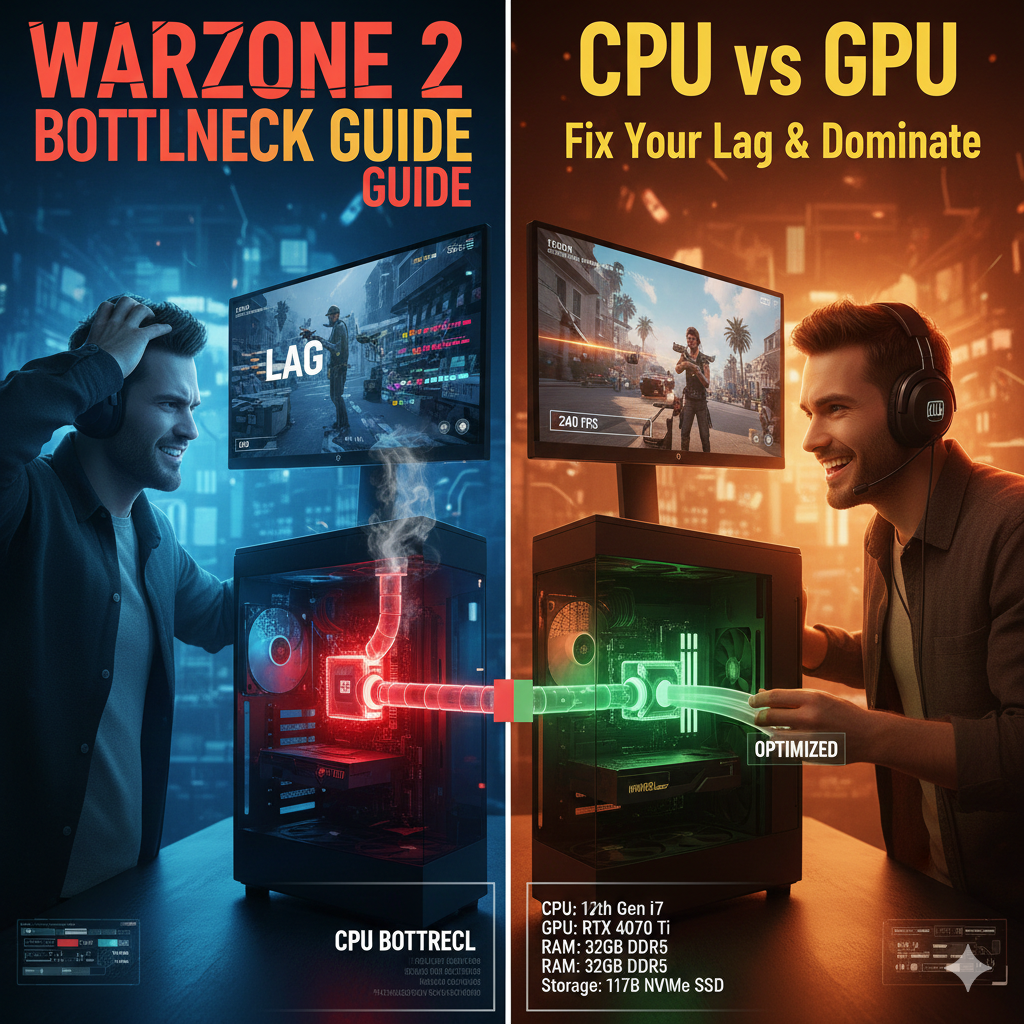

Warzone 2 CPU vs GPU Bottleneck Guide: Fix Your Lag & Dominate
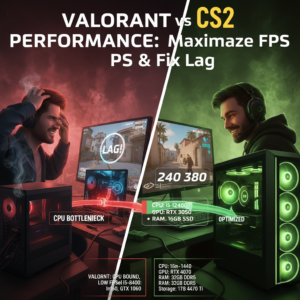
You’ve got the high-end rig. You’ve got the 240Hz monitor. But for some reason, Al Mazrah still feels like you’re wading through digital molasses. If your frame rate is stuttering while your expensive GPU is barely breaking a sweat, you’ve hit the dreaded wall. Welcome to the ultimate Warzone 2 CPU vs GPU bottleneck guide designed for enthusiasts who demand perfection.
In a game as massive as Warzone, your hardware is constantly fighting for resources. Whether it’s the server trying to track 150 players or your GPU rendering volumetric smoke, identifying which component is choking is the first step to a buttery-smooth experience.
The Diagnosis: Is It Your CPU or GPU Choking?
In Warzone 2/MW2, a bottleneck occurs when one component finishes its job faster than the other can receive it.
-
CPU Bottleneck: Your processor is working at 90-100% while your GPU sits at 60%. This is common at 1080p or when using high-refresh monitors. If your frame times (the
msin telemetry) are higher on the CPU than the GPU, you’ve found the culprit. -
GPU Bottleneck: Your graphics card is pinned at 99%. This is actually the “ideal” state for high-end enthusiasts playing at 4K or 1440p Ultra, as it means you’re getting every penny’s worth of your GPU power.
-
The VRAM Trap: If you’re seeing massive stutters (1% lows), you might be exceeding your GPU’s VRAM limit, forcing the system to use much slower system RAM.
Solutions: How to Balance the Load
The fix depends entirely on which side is struggling. Use these “Target” metrics to dial in your rig.
Fixing a CPU Bottleneck
Target: 1080p / 240+ FPS
If your CPU is the bottleneck, you need to offload tasks or give it more breathing room.
-
Increase Resolution: Move from 1080p to 1440p. This forces the GPU to work harder, which can actually stabilize your frame times.
-
Spot Cache: Set this to Ultra or High. It saves shadow data to your drive/VRAM, reducing the constant recalculations your CPU has to perform.
-
NVIDIA Reflex: Set to On + Boost. This helps synchronize the CPU and GPU, reducing input lag even when a bottleneck is present.
Fixing a GPU Bottleneck
Target: 1440p or 4K / 144+ FPS
If you’re on a potato PC or trying to push 4K on a mid-range card, try these:
-
Upscaling: Use DLSS (Quality) or FSR 3.0. This renders the game at a lower resolution and AI-upscales it, massively reducing GPU load.
-
Volumetric Quality: Set to Low. Those fancy lights look great, but they eat frames for breakfast.
-
Particle Quality: Set to Low. This prevents your FPS from diving during heavy gunfights and cluster strikes.
Pro Tip: Handhelds & Mid-Range Fixes
Playing on a Steam Deck or an older GTX 1650? You are almost certainly GPU bound. Set Texture Resolution to “Low” and turn On-Demand Texture Streaming to “Off.” This prevents the game from stuttering as it tries to download and render assets simultaneously on limited hardware.
How Does Your Rig Compare?
Don’t play the guessing game. Use our professional tool to see exactly how your specific CPU and GPU combo will perform in the Warzone.
Check your performance now: Main FPS Calculator Tool