
Cyberpunk 2077 HDD Mode Explained: Fixing Audio Lag & Stuttering (Update 2.0)
If you’ve tried playing Cyberpunk 2077 recently on an older hard drive (HDD), you’ve probably noticed the struggle. The road textures disappear while you’re driving, the game freezes for a second when you enter a new area, or worst of all—the audio desyncs. There is nothing more immersion-breaking than seeing Keanu Reeves talk and hearing his voice five seconds later.
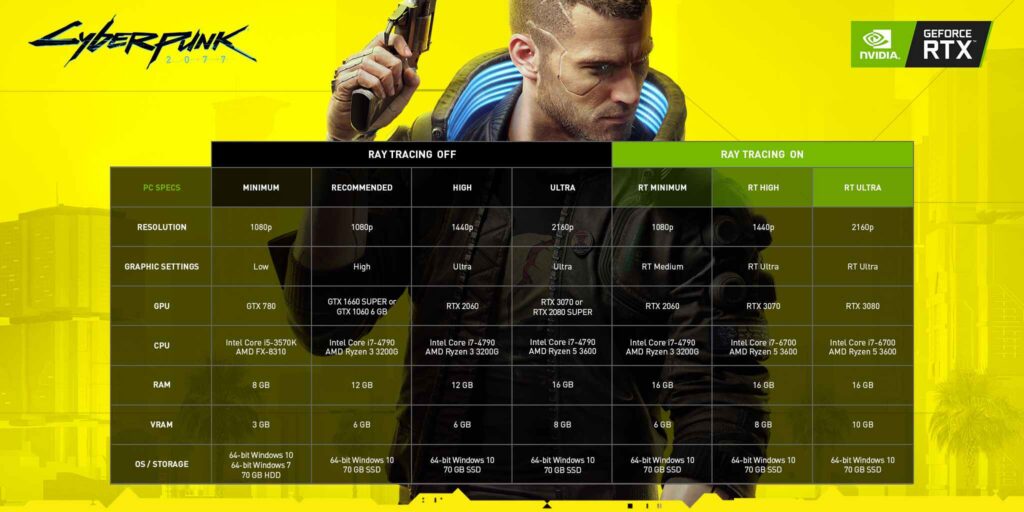
With the release of Update 2.0 and Phantom Liberty, CD Projekt Red officially changed the system requirements to “SSD Required.”
But what if you don’t have an SSD? Can you still play? Let’s break down the “HDD Mode” setting and how to squeeze the best performance out of your mechanical drive.
What is “HDD Mode” in Cyberpunk 2077?
Buried in the game’s Settings > Gameplay tab, you will find a toggle called HDD Mode.
By default, the game assumes you are running on a fast NVMe SSD. It tries to stream assets (textures, models, audio) instantly as you move through Night City. An old mechanical hard drive simply cannot read data fast enough to keep up, causing the game to “hiccup” or audio to cut out.
When you turn HDD Mode to “On” or “Auto,” the game changes how it handles memory.
Instead of streaming everything instantly, it pre-loads more assets into your RAM and VRAM. It essentially tells the engine: “This drive is slow, so let’s load things a bit earlier and keep less traffic/crowds on screen so we don’t choke the bandwidth.”
Why Update 2.0 Made SSDs Mandatory
Prior to patch 1.6, playing on an HDD was doable. However, Update 2.0 overhauled the entire police system, vehicle combat, and AI behavior.
All of these new systems require faster data streaming.
-
SSD Speed: Reads data at 500MB/s to 7,000MB/s.
-
HDD Speed: Reads data at barely 100MB/s to 160MB/s.
When the game tries to load the new Dogtown area or a police chase on an HDD, the drive hits 100% usage, and the game freezes to wait for the data. This is what causes the infamous “audio crackle” and face animations not loading.
How to Fix Audio Desync and Stuttering on an HDD
If you cannot upgrade to an SSD right now, don’t worry. You can still make the game playable (though load times will always be long). Here is the optimization checklist:
1. Enable HDD Mode
Go to Settings > Gameplay and set HDD Mode to ON. Do not leave it on “Auto”—force it on.
2. Lower Crowd Density
This is the secret killer. Go to Settings > Graphics and set Crowd Density to Low.
Crowds require massive amounts of CPU power and asset streaming. Lowering this reduces the amount of data your hard drive needs to fetch while you walk down the street.
3. Defragment Your Drive
If you haven’t done this in a while, do it now. Since HDDs use physical spinning platters, fragmented data makes the read head jump around, slowing it down further.
-
Type “Defragment” in your Windows search bar.
-
Select your game drive and click “Optimize.”
4. Check Your CPU and RAM Bottlenecks
Sometimes, the stuttering isn’t just the hard drive. Because HDD Mode offloads work to your RAM and CPU to compensate for the slow drive, a weak processor can get crushed by the extra workload.
Hardware Check: If you are stuck on an HDD, check if your CPU can handle the bottleneck here.
5. The “Slow HDD” Mod
If the in-game settings aren’t enough, the community has your back. Check Nexus Mods for “Cyberpunk 2077 Disk Cache Enabler” or config edits specifically designed for 5400RPM or 7200RPM drives. These tweaks force the game to use more system memory as a buffer.
Final Verdict: Is it Playable?
Yes, but you need to temper your expectations. With HDD Mode On and Crowd Density Low, you can eliminate most of the audio desync. However, if you are planning to play the Phantom Liberty expansion, we strongly recommend installing the game on even a cheap SATA SSD for the best experience. Night City waits for no one—especially not a spinning drive!