
CS2 Config Optimization Guide: Stop Stuttering and Play Like a Pro
Listen, choom, if you’re still running Counter-Strike 2 on default settings in 2026, you’re basically bringing a knife to a railgun fight. We’ve all been there: you peeking Mid on Mirage, your frames drop, and suddenly you’re spectating your teammate. If your potato PC is screaming for mercy or your high-end rig feels “floaty,” it’s time for a deep dive into cs2 config optimization.
To hit those crispy headshots, you need more than just raw aim; you need a configuration that prioritizes frame pacing and visibility over eye candy. This guide will walk you through the exact cs2 config optimization tweaks used by the pros to eliminate input lag and maximize those sweet, sweet frames.
The Diagnosis: Why Your Game Feels Like Sludge
CS2 is far more demanding than the old Source 1 days. It’s no longer just about high average FPS; it’s about your 1% lows.
-
VRAM Limits: High-resolution textures can choke cards with less than 8GB of VRAM, causing massive hitches during utility-heavy executes.
-
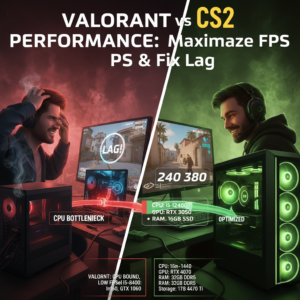
CPU Bottlenecks: CS2 loves fast single-core performance. If your CPU is ancient, your GPU will sit idle while you stutter through every smoke.
-
Sub-tick Latency: Poor network configs and frame-pacing issues can make the new sub-tick system feel “off” or unresponsive.
Solutions: High-End CS2 Config Optimization
For the enthusiast, we aren’t just looking for “playable.” We want “competitive perfection.” Here is the blueprint for a professional-grade setup.
Step 1: Video Settings (The Visibility King)
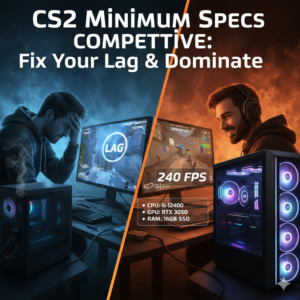
Target: 1440p / 240+ FPS or 1080p / 360+ FPS
-
Boost Player Contrast: Enabled (Absolute must for spotting campers).
-
Global Shadow Quality: Medium or High. Do not set to Low! You need to see enemy shadows before they peek you.
-
Model / Texture Detail: Medium.
-
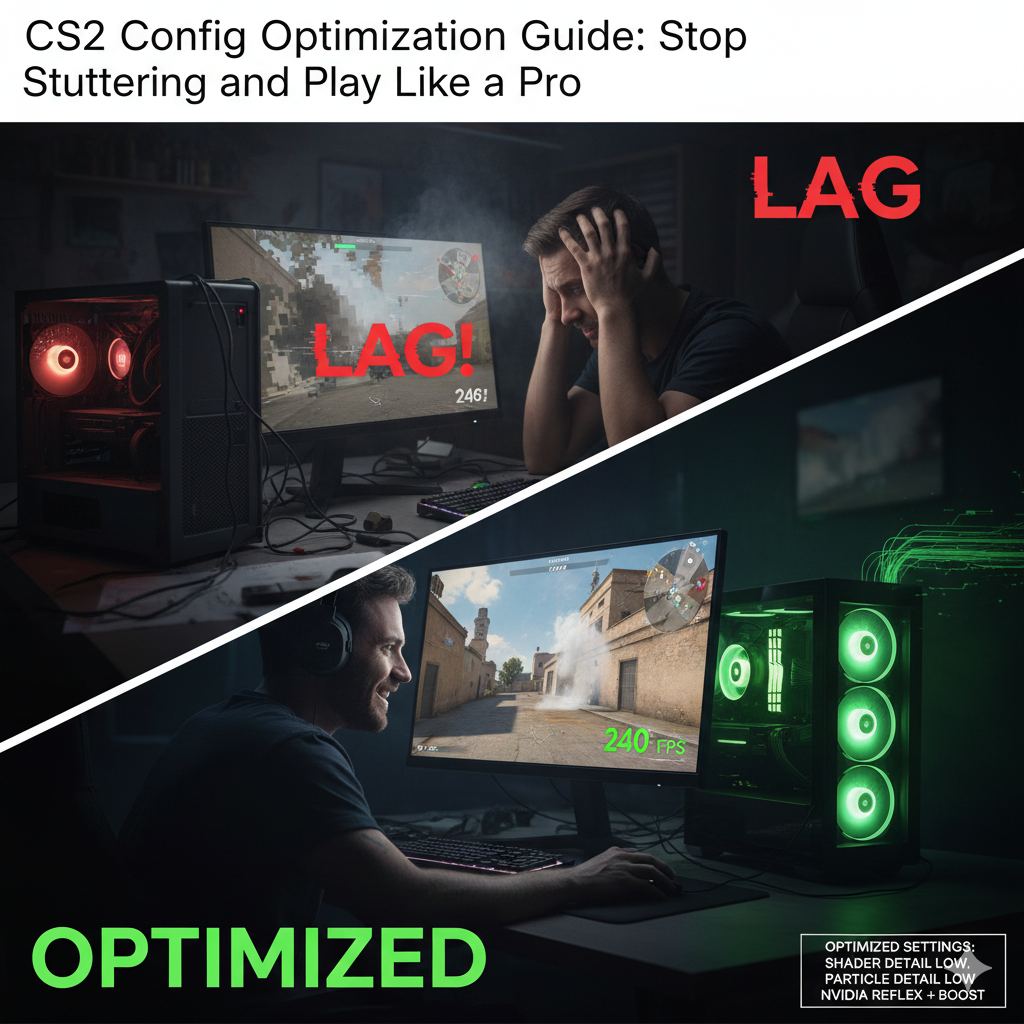
Shader & Particle Detail: Low. This prevents FPS drops when multiple smokes and molly’s pop.
-
NVIDIA Reflex Low Latency: Enabled + Boost.
Step 2: The Pro Launch Options
Right-click CS2 in Steam > Properties > Launch Options. Paste these in for an instant cs2 config optimization boost:
-novid -high -freq 360 -threads 8 +fps_max 0(Note: Change
360to your monitor’s refresh rate and8to your CPU’s physical cores.)
Step 3: The Autoexec.cfg
Create an autoexec.cfg in your game folder (game/csgo/cfg/) to lock in these competitive tweaks:
-
cl_radar_scale 0.35(See the whole map, not just your neighborhood). -
cl_radar_always_centered 0. -
engine_low_latency_sleep_after_client_tick true(Helps with frame pacing).
Important: Steam Deck & Handheld Settings
If you’re playing on the go, your cs2 config optimization needs a different flavor.
-
Resolution: 1280×800.
-
FidelityFX Super Resolution (FSR): Set to Quality.
-
Anti-Aliasing: 2x MSAA (keeps edges clean without killing the GPU).
See How Your Gear Measures Up
Before you go spending thousands on a new GPU, check if your current setup is the real bottleneck. Use our real-time testing tool to see your projected performance.
Check your frames now: Main CS2 FPS Calculator Tool