
How to Reduce Stuttering in MW 3: Fix Performance Lag & Spikes
Yo, choom. Are you rocking a high-end rig with an RTX 50-series or a beastly Ryzen chip, yet Call of Duty: Warzone MW 3 feels like a PowerPoint presentation? There is nothing worse than having the best hardware on the market only to lose a gunfight because your game decided to hitch for a microsecond.
If you are looking for how to reduce stuttering in MW 3, you’ve come to the right place. Even in 2026, the CoD engine still has its quirks—especially when it comes to VRAM management and shader compilation. We’re going to bypass the “turn everything to low” advice for potato PCs and focus on technical fixes that keep your game looking crisp while staying buttery smooth.
The Diagnosis: Why Your High-End PC Is Stuttering
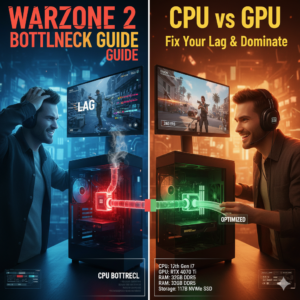
Before we dive into the fixes, let’s talk about the bottleneck. Most enthusiasts assume stuttering is a GPU issue, but in MW 3, it’s usually one of three culprits:
-
VRAM Over-Allocation: Believe it or not, setting your VRAM target too high (like 90%) can actually cause the game to “choke” on its own memory.
-
Shader Cache Bloat: Every update potentially corrupts your old shaders, leading to those annoying micro-stutters during fast movements.
-
CPU Core Mismatch: The game sometimes fails to utilize all your Performance Cores (P-Cores), leaving your CPU struggling to keep up with the frame delivery.
Technical Fixes: How to Reduce Stuttering in MW 3
Ready to get back to 240+ FPS? Follow these targeted steps to stabilize your frametimes.
1. Adjust the VRAM Scale Target
Counter-intuitively, high-end cards like the RTX 5090 or RX 8000 series often perform better when you limit the VRAM the game is allowed to grab.
-
Target: Stable 4K / 144FPS
-
Go to Settings $\rightarrow$ Graphics $\rightarrow$ Quality.
-
Find VRAM Scale Target and drop it from 90 to 70 or 80.
-
Why? This leaves a “buffer” for Windows and background apps, preventing the game from hitting a memory wall that causes hitching.
2. Reset Shaders After Every Update
If you notice a MW 3 stutter right after a Tuesday patch, your shaders are likely toast.
-
In the Graphics menu, click Restart Shader Pre-Compilation.
-
Important: Stay in the menu and let it reach 100%. Don’t jump into a match early, or you’ll be stuttering for the next hour while it finishes in the background.
3. Disable On-Demand Texture Streaming
This setting is the “silent killer” of consistent gameplay. It downloads high-res textures while you play, which can cause “packet burst” and frame drops simultaneously.
-
Set On-Demand Texture Streaming to Off.
-
If you want the best visuals, ensure your Texture Resolution is set to High/Normal manually instead of relying on the stream.
Advanced Solutions for MW 3 Stuttering
For those who want to go deeper, we need to look at how the game communicates with your hardware.
Hardware Priority & Threading
If you’re on a modern Intel or AMD chip, the game’s renderer_worker_count in the config files might be set incorrectly.
-
Navigate to
Documents\Call of Duty\players. -
Open
options.4.cod23.cstwith Notepad. -
Find
RendererWorkerCount. Set this to half your total thread count (e.g., if you have 16 threads, try 8). -
This often solves “hitching” during high-action scenes.
Internal System Check
Is your hardware actually the problem? Use our tools to find out where your performance stands.
Calculate your real performance here: MW 3 FPS Calculator Tool
Summary: The Verdict
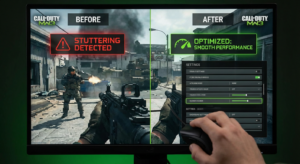
Learning how to reduce stuttering in MW 3 is all about balancing VRAM and ensuring your CPU isn’t fighting background processes. By capping your VRAM target at 80%, disabling texture streaming, and refreshing your shader cache, you’ll eliminate those frustrating spikes.
Now get back out there and dominate the lobby, choom.