
Rainbow Six Siege remains one of the most demanding tactical shooters when it comes to competitive performance. Every frame matters in a game where a single pixel can cost you a round. Whether you are running an entry-level GPU or a flagship card, finding the best PC settings for Rainbow Six Siege is the single most impactful thing you can do to improve your gameplay.
This guide covers every in-game setting, Windows tweak, and GPU control panel adjustment you need in 2026.
Why the Best PC Settings for Rainbow Six Siege Matter More Than Hardware
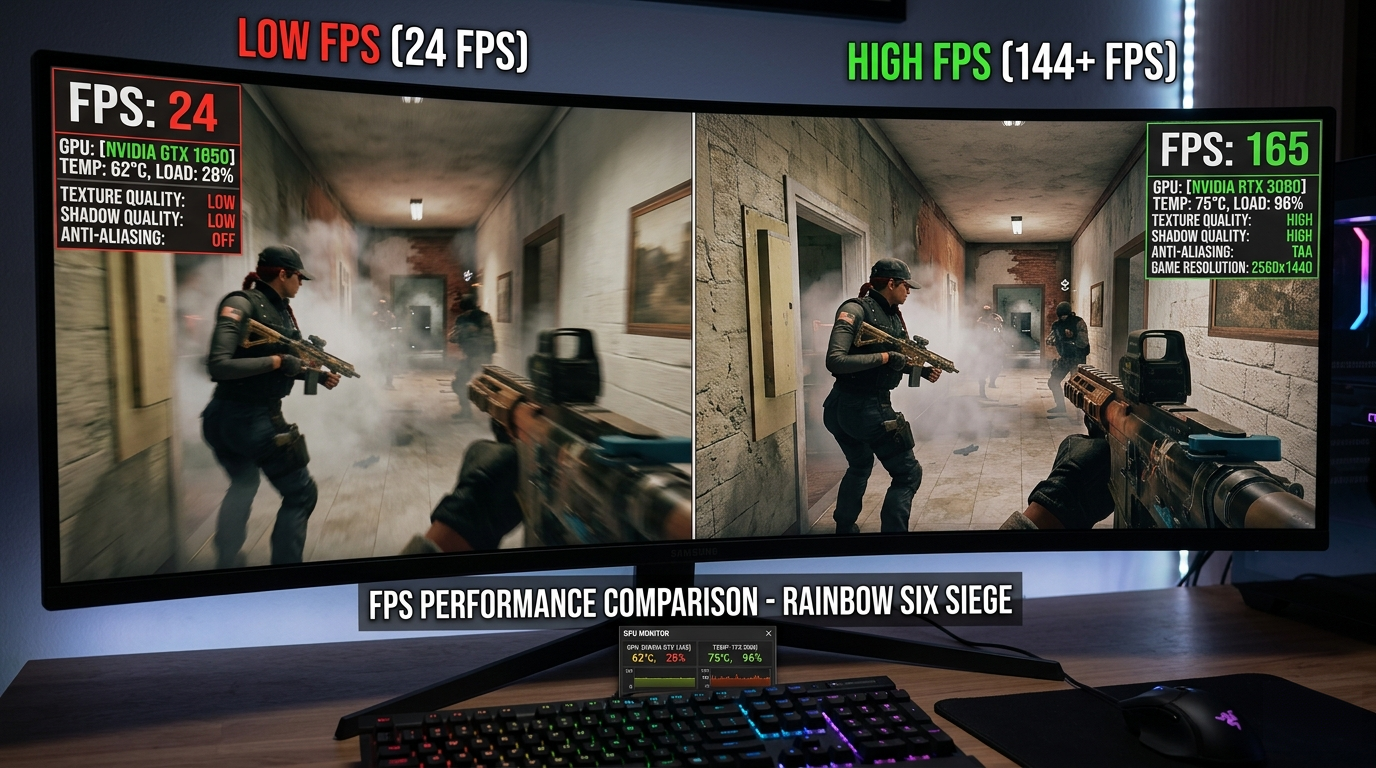
Many players assume upgrading their GPU is the first step to better FPS. In reality, misconfigured settings can cost you 30–50% of your potential frame rate before you ever think about hardware. Siege is a CPU-heavy game — optimizing your settings removes bottlenecks and lets your processor breathe.
A well-tuned mid-range machine running the best PC settings for Rainbow Six Siege will often outperform a high-end rig with default configurations. This is especially true at high refresh rates (144Hz, 240Hz, 360Hz), where consistent frame delivery matters as much as raw FPS.
For a deeper look at how your hardware stacks up, check out our FPS Calculator tool on this site.
In-Game Graphics Settings
Open Options → Graphics and apply these settings.
Display Settings
| Setting | Recommended Value |
|---|---|
| Display Mode | Fullscreen |
| Resolution | Native |
| Refresh Rate | Max supported by monitor |
| VSync | Off |
| FPS Limit | Slightly above monitor refresh rate |
Set Display Mode to Fullscreen — not borderless windowed. Fullscreen gives you exclusive GPU access and the lowest input latency.
Best PC Settings for Rainbow Six Siege: Graphics Quality
| Setting | Recommended Value |
|---|---|
| Overall Quality | Custom |
| Texture Quality | Medium |
| Texture Filtering | Bilinear |
| LOD Quality | Low |
| Shading Quality | Low |
| Shadow Quality | Low |
| Shadow Resolution | Low |
| Ambient Occlusion | Off |
| Lens Effects | Off |
| Zoom-in Depth of Field | Off |
| Anti-aliasing | T-AA (or Off for max FPS) |
| Render Scaling | 100% |
Shading Quality has the single largest FPS impact — dropping it from Ultra to Low can add 20–40 FPS depending on your GPU. Ambient Occlusion is a pure performance drain with minimal visual benefit.
Anti-Aliasing — T-AA vs. Off
T-AA reduces shimmer on edges but introduces slight blur. Competitive players are split:
- T-AA — cleaner image, slightly smoother on lower-res monitors
- Off — sharper but more aliasing; better on 1440p+ monitors
If you are playing on 1080p at 144Hz+, try Off for maximum clarity. On 1440p, T-AA tends to look better without meaningful performance cost.
Windows and System Optimizations
Power Plan
Set Windows to High Performance or Ultimate Performance mode:
- Open Control Panel → Power Options
- Select High Performance
- For Ultimate Performance (Windows 10/11 Pro): run
powercfg -duplicatescheme e9a42b02-d5df-448d-aa00-03f14749eb61in an admin PowerShell, then enable it
Game Mode and Hardware-Accelerated GPU Scheduling (HAGS)
- Game Mode: On (Settings → Gaming → Game Mode)
- HAGS: On RTX 3000/4000/5000 and RX 6000/7000+, enable it. On older GPUs, disable it.
You can cross-reference GPU generation compatibility in this performance guide on our blog.
GPU Control Panel Settings
NVIDIA Control Panel
| Setting | Value |
|---|---|
| Power Management Mode | Prefer Maximum Performance |
| Low Latency Mode | Ultra |
| Texture Filtering Quality | High Performance |
| Vertical Sync | Off |
| Threaded Optimization | On |
| Max Frame Rate | Off |
Low Latency Mode: Ultra is one of the most impactful NVIDIA settings for Siege — it reduces the render queue to near-zero, cutting input lag noticeably at high framerates.
AMD Radeon Software
| Setting | Value |
|---|---|
| Radeon Anti-Lag | Enabled |
| Radeon Boost | Disabled |
| Image Sharpening | Disabled |
| Wait for Vertical Refresh | Off |
For more context on how AMD and NVIDIA compare in Siege, the Tom’s Hardware GPU benchmark database is the most up-to-date external reference.
Siege-Specific Launch Options
In Ubisoft Connect, right-click Rainbow Six Siege → Properties → Launch Arguments and add:
-nolog -nosplashThese skip intro splash screens and logging overhead. Avoid aggressive launch flags that claim to unlock hidden CPU cores — these are placebo effects or actively destabilizing in the current engine version.
Network Settings for Competitive Play
Low FPS is not always the bottleneck. Packet loss and high ping can make Siege feel stuttery even at 200+ FPS. Check:
- Wired connection over Wi-Fi — always
- DNS: Switch to
1.1.1.1(Cloudflare) or8.8.8.8(Google) if your ISP DNS is slow - In-game: set Data Center manually to your nearest region
Recommended Settings by GPU Tier
Budget GPUs (GTX 1650, RX 6500 XT and below)
Focus: hit 144 FPS consistently.
- Render Scaling: 90%
- All Quality settings: Low
- Anti-aliasing: Off
Mid-Range GPUs (RTX 3060, RTX 4060, RX 7600)
Focus: 144–240 FPS at 1080p.
- Render Scaling: 100%
- Texture Quality: Medium
- Shadow Quality: Low
- Shading: Low
High-End GPUs (RTX 4070 Ti+, RX 7900 XT+)
Focus: 240–360 FPS at 1080p/1440p.
- All settings as recommended
- Texture Quality: High
Final Checklist
- Fullscreen mode enabled
- VSync off
- Shading Quality set to Low
- Ambient Occlusion off
- Windows Power Plan set to High Performance
- NVIDIA Low Latency Mode: Ultra / AMD Anti-Lag: On
- Wired internet connection
Applying the best PC settings for Rainbow Six Siege does not require expensive hardware — it requires deliberate configuration. These tweaks take under 15 minutes and can meaningfully improve your frame rate, input response, and consistency in every match.
Looking to calculate your expected FPS before upgrading? Use the FPS Calculator tool to estimate performance across different hardware combinations.