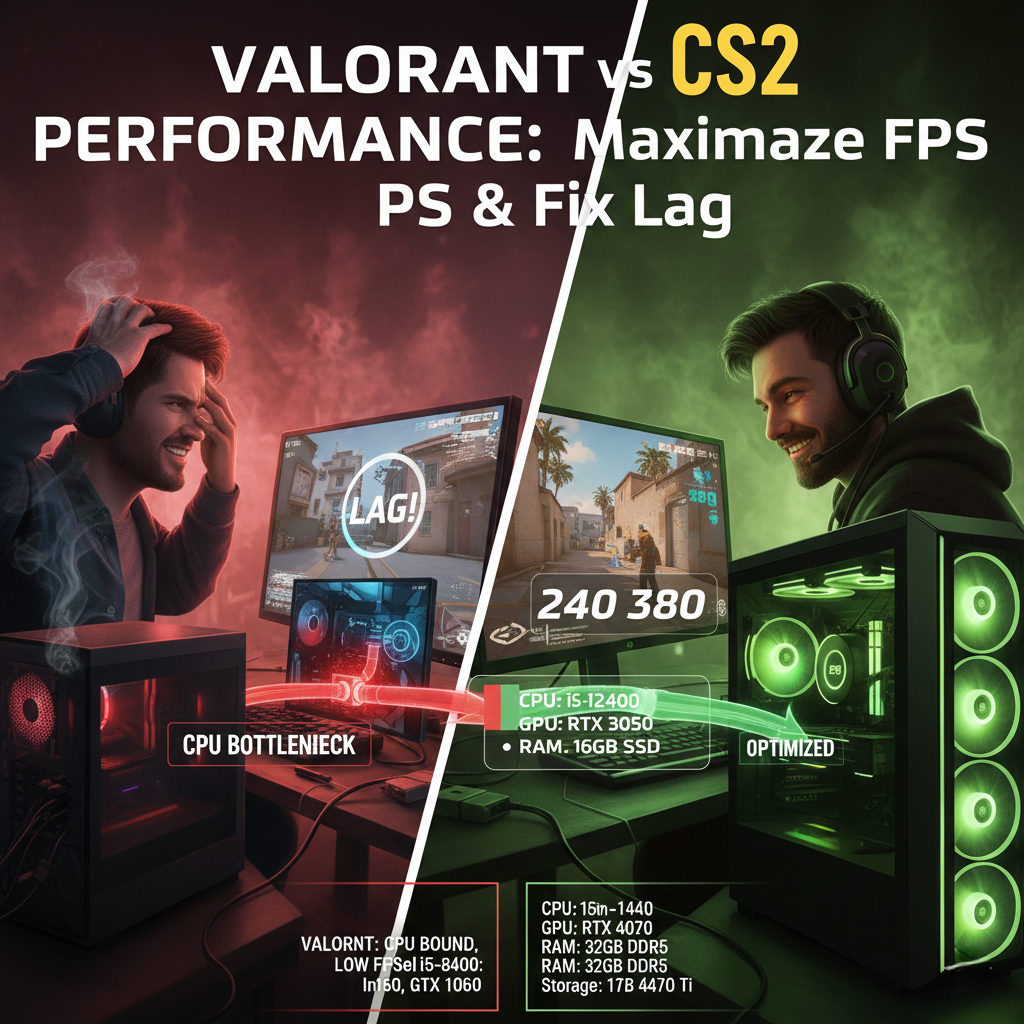

Switching between tactical shooters shouldn’t mean wrestling with your settings to fix random lag and stuttering. If your high-end rig feels like a potato PC when swapping games, you are losing valuable Elo, choom. Let’s dive into the ultimate Valorant vs CS2 performance breakdown to help you lock in maximum frames.
To truly dominate, you need to understand how each game taxes your hardware differently. Let’s fix those frame drops and get your system running like a competitive powerhouse.
The Diagnosis: Why Valorant vs CS2 Performance Differs
These two titans use fundamentally different engines that abuse your hardware in unique ways. Valorant runs on a heavily modified Unreal Engine 4, which is notoriously CPU-bound and heavily reliant on processor cache.
Counter-Strike 2, however, uses the much newer Source 2 engine. The new volumetric smokes and lighting mechanics put a massive GPU bottleneck on your system, requiring significantly more VRAM. If your rig isn’t balanced, your 1% lows will absolutely tank during chaotic executes.
Optimizing Your Valorant vs CS2 Performance
To compete at the highest ranks, we aren’t settling for “playable.” We want enthusiast-tier stability. Here are the precise settings to keep both titles running flawlessly.
CS2 Settings (Target: 1440p / 360+ FPS)
-
Global Shadows: High. Do not lower this! You absolutely must see enemy shadows before they swing you.
-
Shader & Particle Detail: Low. This is the ultimate fix to prevent FPS dips when multiple smokes and molotovs pop.
-
NVIDIA Reflex: Enabled + Boost.
Valorant Settings (Target: 1440p / 500+ FPS)
-
Multithreaded Rendering: ON. If you have a modern 6-core+ processor, this is non-negotiable for maximum frames.
-
Material / Detail Quality: Low. This removes distracting visual clutter and gives your CPU some breathing room.
-
Anti-Aliasing: MSAA 2x. Keeps player models crisp without bogging down your graphics card.
GTX 1650 & Steam Deck Tweaks for Valorant vs CS2 Performance
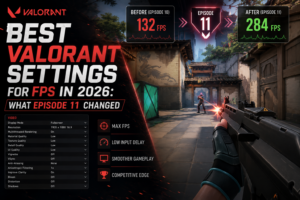
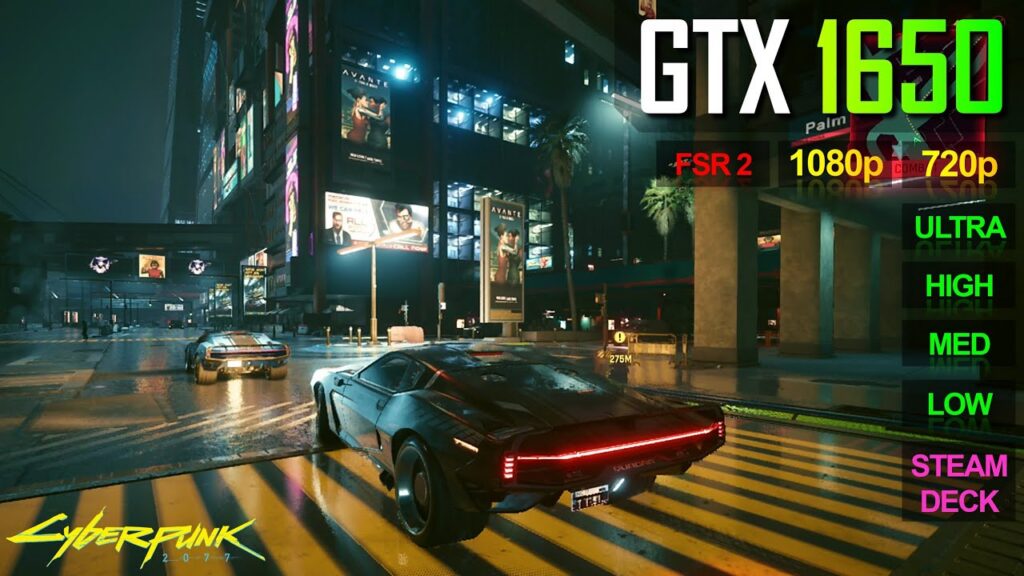
If you’re stuck on an older GTX 1650 or grinding on a Steam Deck, you need to compromise. Drop your resolution to 1080p (or 800p for the Deck). In CS2, set FSR to Quality to save your GPU. For Valorant, cap your max frame rate to match your display’s refresh rate to prevent nasty thermal throttling. However, proper FPS optimization goes beyond frame caps alone — especially after the Episode 11 renderer update. Our guide to the best Valorant settings for FPS in 2026 explains which settings actually improve performance and which ones are placebo tweaks.
Test Your PC Hardware Now
Don’t guess if your rig is ready for the competitive grind. Check your exact specs against our pro-grade calculators to pinpoint your specific bottleneck.
-
Check CS2 Frames: Main CS2 FPS Calculator Tool
-
Check Valorant Frames: Main Valorant FPS Calculator Tool